AL on Linux, Dev Containers, and Codespaces
At BC TechDays 2023 in Antwerp, Tobias Fenster and I did a joint session called “Experiments for BC — Wasm? Codespaces? Linux? Wtf!” The full session is on YouTube if you want to watch it.
Tobias kicked things off with a deep dive into WebAssembly — what it is, where it came from, and why it might matter for the BC ecosystem. If you’re curious about running .NET or AL-adjacent code in a WASM runtime, his half is worth watching.
My part was about something more immediately practical: getting AL development to work on Linux, and what that unlocks for Dev Containers and GitHub Codespaces. This post covers that second half.
Why AL on Linux?
My personal reason is simple. I used to run Linux before I got into the NAV world, and what annoyed me most about switching to Windows was that things happened without my knowledge. The system process eating 90% of CPU with no explanation. That kind of thing. On Linux you always know what is happening — and if you really want to, you can dig into the source code and figure it out.
Beyond that: the developer-centric open-source ecosystem is just better, it runs faster on the same hardware, and there’s no license cost. It’s also, honestly, just fun to use.
The obvious objection is that the AL language extension didn’t support Linux. That was true — until recently.
Why it didn’t work, and what the fix is
The migration to .NET Core actually got us most of the way there. The AL language server itself runs fine cross-platform. The problem was that the VS Code extension was calling a precompiled Windows binary directly, instead of calling the generic DLL via the dotnet executable. There were also some small JSON data type differences between Windows and Linux that needed patching.
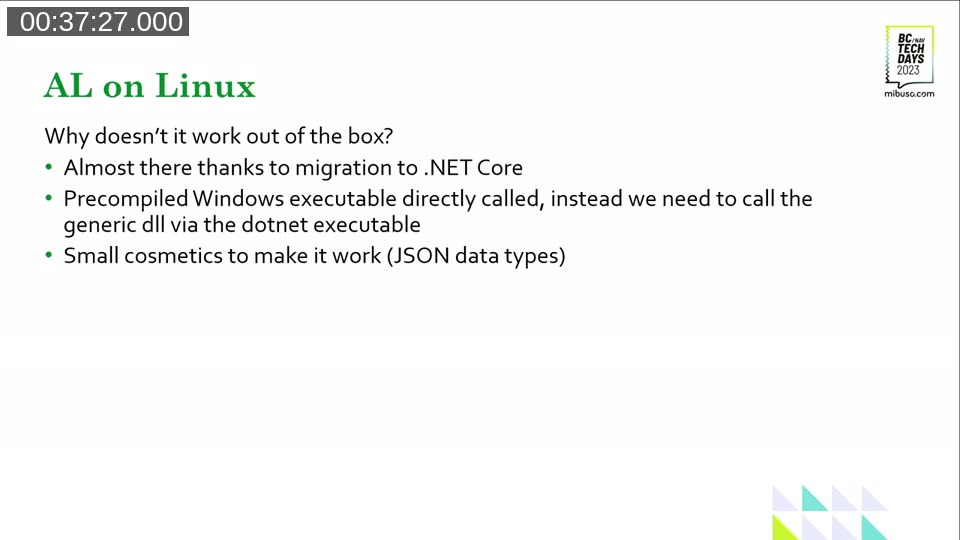
The fix is an extension I created: the AL Language Linux Patcher. You can find it on the VS Code Marketplace by searching for allanguagelinuxpatcher. It does a targeted search-and-replace inside the AL language extension’s TypeScript code, then triggers a window reload. That’s it.
The only precondition is having .NET 6 installed. The extension has a setting (allanguagelinuxpatcher.dotnet-path) for cases where .NET ends up somewhere other than the default /bin/dotnet.
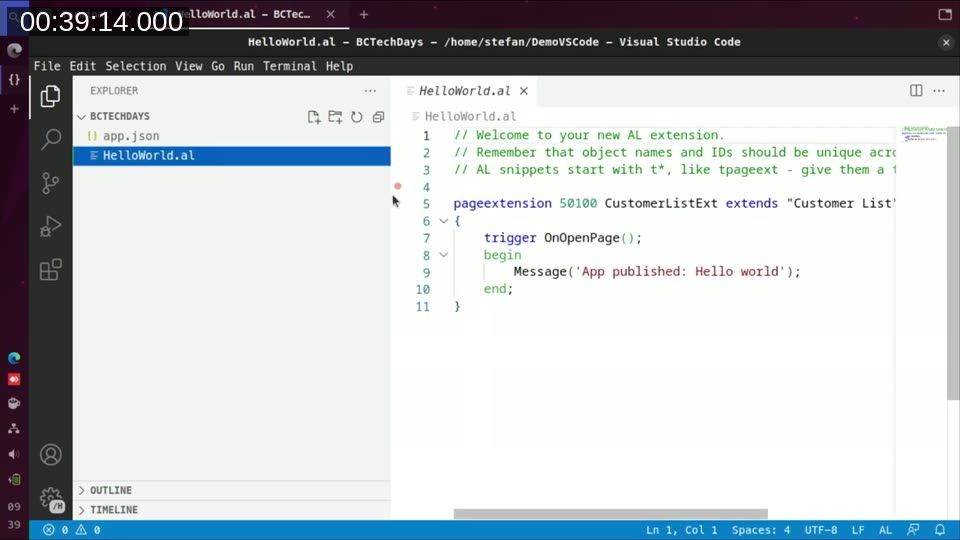
Here’s what VS Code looks like before running the patch — AL extension is installed, syntax highlighting works, but none of the important commands (Download Symbols, Compile, Publish) are available:
After running the patch, the AL language server loads, symbols download, and you get the full experience:
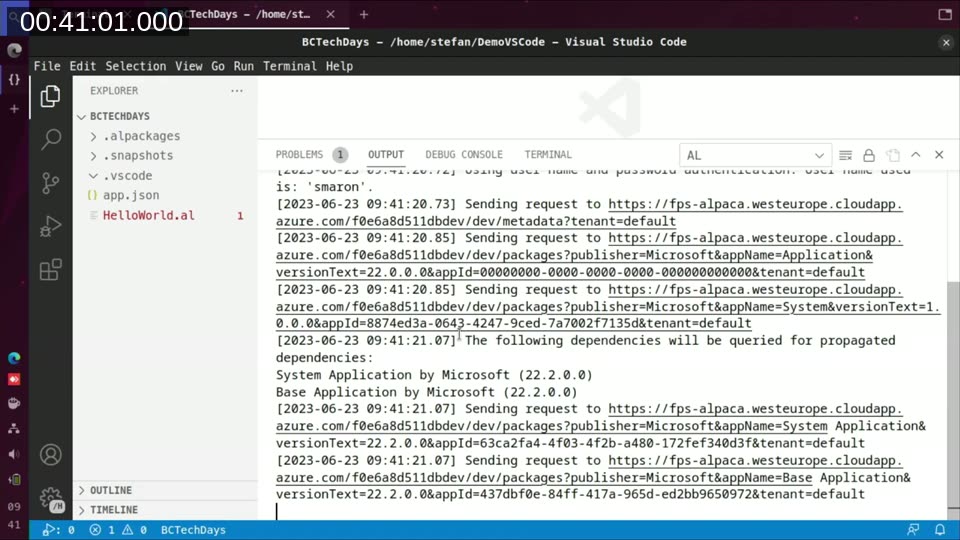
Compile, publish, and debug all work. I know that’s not impressive if you’ve been doing this on Windows for years. But now you can do it on Linux.
Why this matters beyond just Linux
Getting Linux support is nice for people like me who prefer running Linux. But the bigger implication is what it unlocks: Dev Containers.
VS Code Dev Containers require a Linux container. Before Linux support for AL, that was a non-starter. Now it’s possible — and the dev environment story for AL gets a lot better because of it.
My development environment at some point starts to feel slower. Things accumulate. At some point you know you need to reinstall or start from scratch. With a Dev Container, that’s a 30-second rebuild. Everything is described in a devcontainer.json that lives in version control — your tools, extensions, settings, .NET version. Infrastructure as code for your dev environment.
If you onboard a new developer, they clone the repo, VS Code asks if they want to open it in the container, and they’re up and running with the exact same setup as everyone else.
How Dev Containers work
VS Code still runs locally on your machine. What changes is that VS Code Server — the component that runs workspace extensions like the AL language extension — runs inside the container instead. Your source code is volume-mounted into the container so it’s preserved when the container is destroyed.
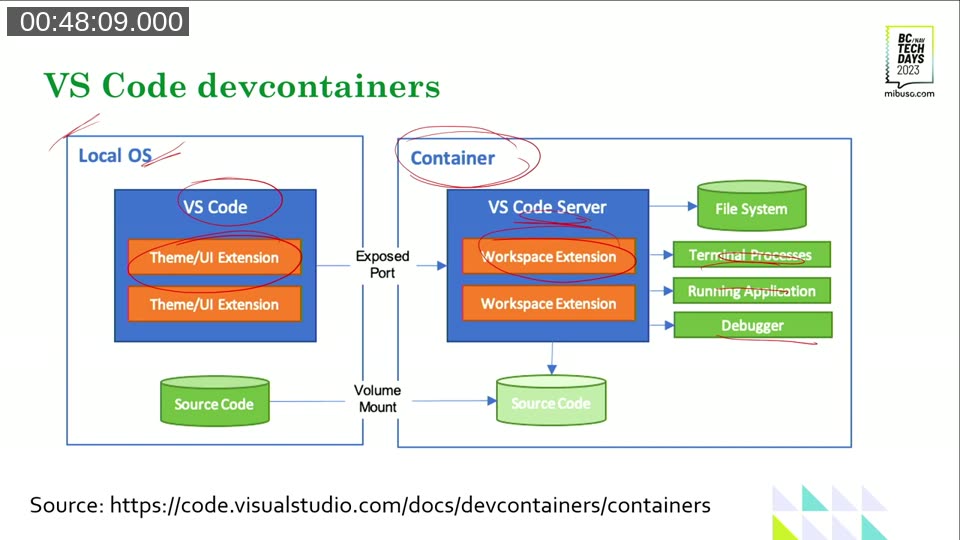
From a practical standpoint, the experience is identical to local development. Terminal, debugger, extensions — all there.
Setting up a Dev Container for AL
The starting point is the C# (.NET) template, which gives you .NET 6 pre-installed. From there, you add the AL language extension and the Linux Patcher to the customizations.vscode.extensions array in devcontainer.json, and set the dotnet path for the patcher:
"customizations": {
  "vscode": {
    "extensions": [
      "ms-dynamics-smb.al",
      "stefanmaron.allanguagelinuxpatcher"
    ],
    "settings": {
      "allanguagelinuxpatcher.dotnet-path": "/usr/bin/dotnet"
    }
  }
}
Commit that file to your repo and every developer picks it up automatically. When you reopen the folder in a container, VS Code spins up the container, installs the extensions fresh inside it, and reconnects. You run the patch once per container (since the AL extension reinstalls clean on container creation), and then you’re good.
The debugging fix
There’s one catch with debugging inside a Dev Container. By default, the container mounts your workspace at /workspaces/YourProject. But the AL extension, when hitting a breakpoint in your custom code, tries to open the file at the path it knows from the host — say /home/stefan/Documents/AL/BCTechDays. That path doesn’t exist inside the container, so the debugger opens fine for base app code but can’t navigate to your own files.
The fix is two settings in devcontainer.json that tell Docker to mount the workspace at the same absolute path as on the host:
"workspaceMount": "source=${localWorkspaceFolder},target=${localWorkspaceFolder},type=bind",
"workspaceFolder": "${localWorkspaceFolder}"
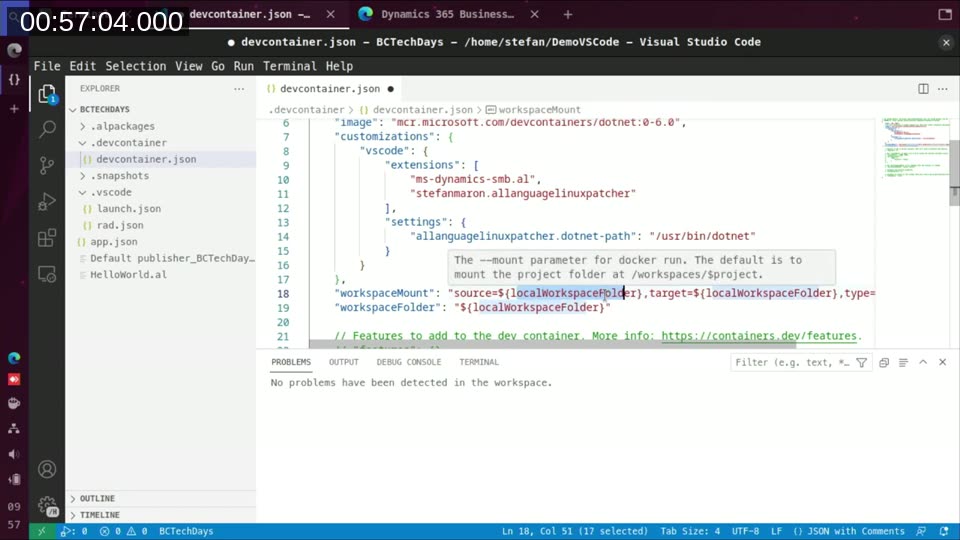
After rebuilding the container with those settings, breakpoints in your own AL code work correctly:
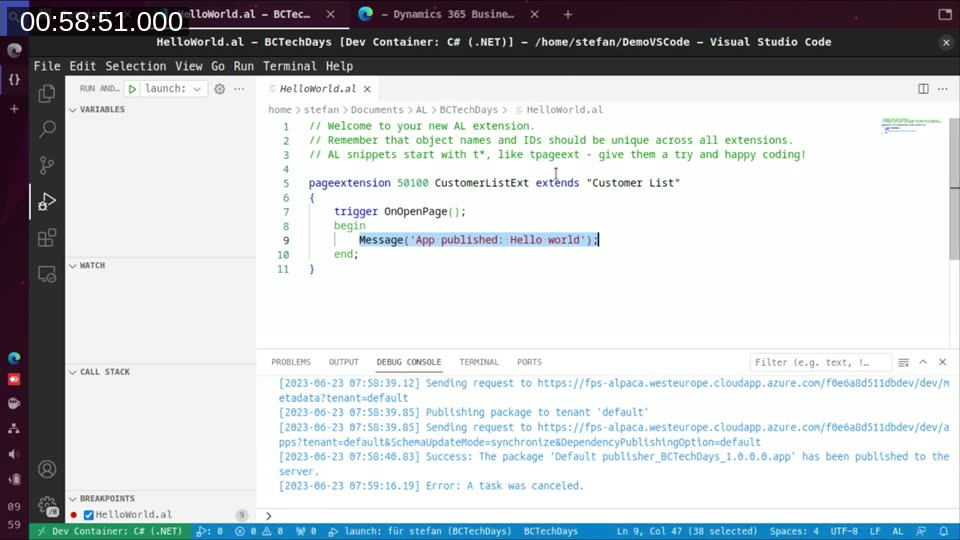
One important caveat: this workaround only works if your host is also Linux. On Windows the path layout is different, so the paths won’t match. Which brings us to the next part.
This also works on Windows, via WSL2
Dev Containers don’t support Windows containers, but they do support Windows hosts — through the Windows Subsystem for Linux. The same devcontainer.json that works on my Linux machine works on Tobias’s Windows machine via Docker Desktop + WSL2. VS Code recognizes the config file, offers to reopen in the container, and it just works.
The workspaceMount trick doesn’t apply there (paths are different), so debugging custom code from a Windows host hits the same limitation. But compile and publish work fine.
GitHub Codespaces — the logical next step
Once you have a Dev Container config, moving to GitHub Codespaces is straightforward. Codespaces is the same technology — a Linux Dev Container — but the container runs in a VM on Azure instead of your local machine. You connect via VS Code desktop or directly in a browser.
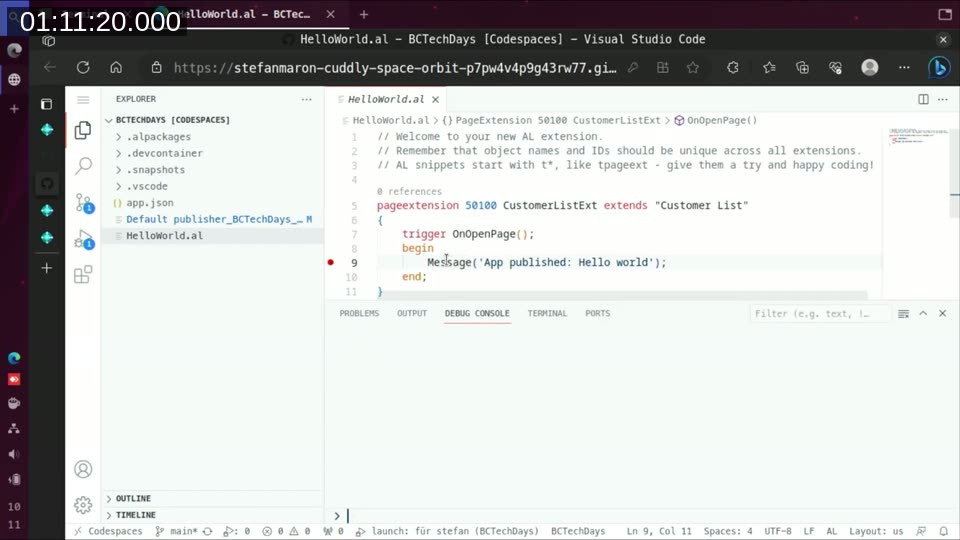
The demo worked — AL compiles and publishes from a browser tab connected to a cloud VM. That’s not something I would have thought possible a few years ago.
The current limitation is debugging. Codespaces uses a Docker-in-Docker setup internally, which means the workspaceMount trick doesn’t apply. The workspace lands at a path under /var/lib/docker/codespacemount/ and the AL extension can’t find your source files when hitting a breakpoint:
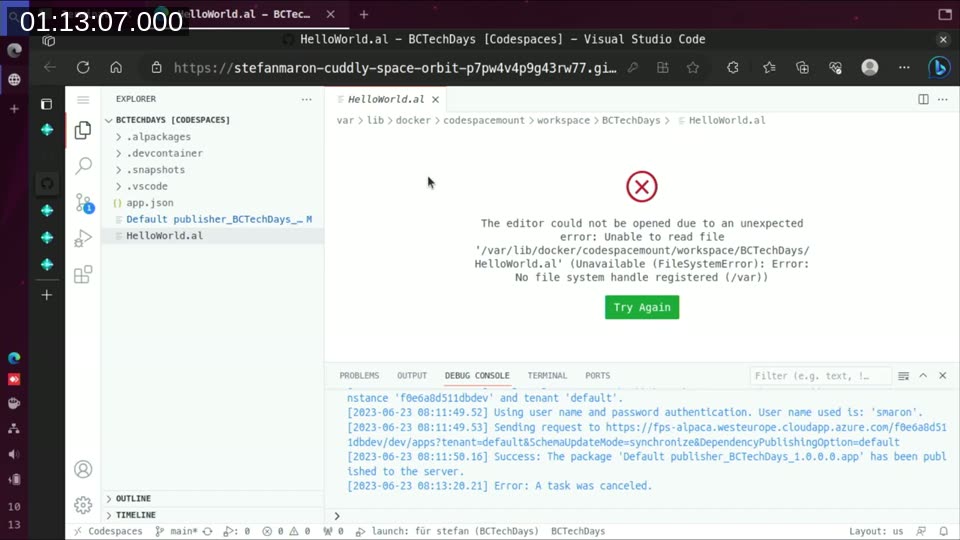
So at the time of this session: compile and publish from Codespaces work, debugging does not. That may well change as the AL extension matures on Linux.
The AL Language Linux Patcher is open source — source is on GitHub if you want to take a look or contribute.
Update 2026
The Linux Patcher is no longer needed. Microsoft has since added native Linux support directly to the AL language extension, so it works out of the box without any patching. I’ve removed the extension from the Marketplace. The Dev Container and Codespaces approach described here still applies — you just don’t need the patcher step anymore.
This post was drafted by Claude Code from the session transcript and video frames. The full session is on YouTube if you want the unfiltered version. (I did read and check the output before posting, obviously 😄)