AppSource Monetization and Entitlements in Business Central
I recently worked on two AppSource apps that use transactability — meaning Microsoft handles billing through the marketplace. Both required entitlement objects, and there were a few things that tripped me up. The documentation exists, but it doesn’t always connect the dots between Partner Center, entitlement objects, and permission sets. This stream goes through the whole flow.
You can watch the full stream on YouTube if you want to follow along.
Setting Up the Offer in Partner Center
The starting point is Partner Center. To enable AppSource billing, open your offer, go to Offer setup, and switch on “Yes, I would like to sell through Microsoft and have Microsoft host transactions on my behalf.” This unlocks the plan overview section.
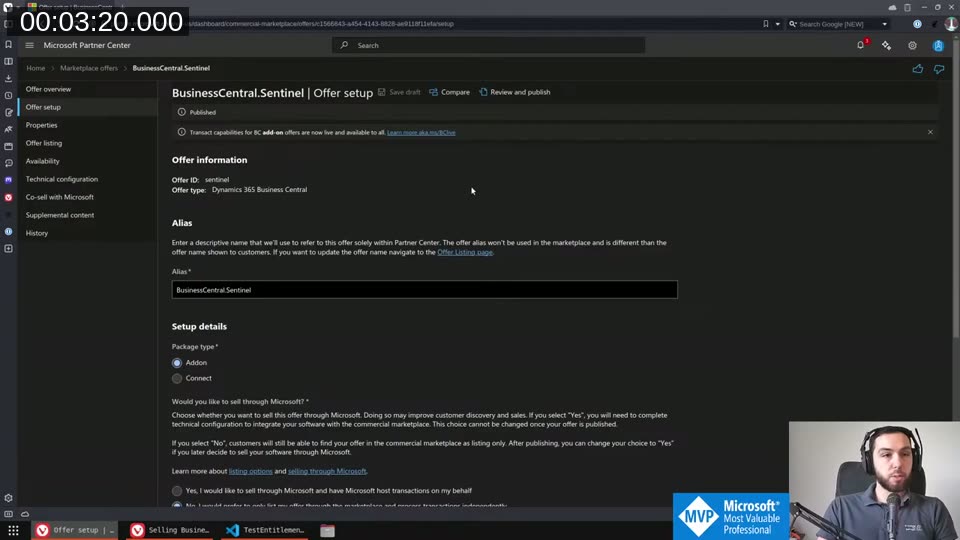
Once enabled, you create one or more plans. Each plan has a Plan ID, a display name, and pricing settings. The Plan ID is what you’ll use inside your AL entitlement object to tie the plan to specific permissions. On the pricing page you can set per-user monthly or annual pricing, configure a free trial month, import regional pricing via spreadsheet, and set plan visibility.
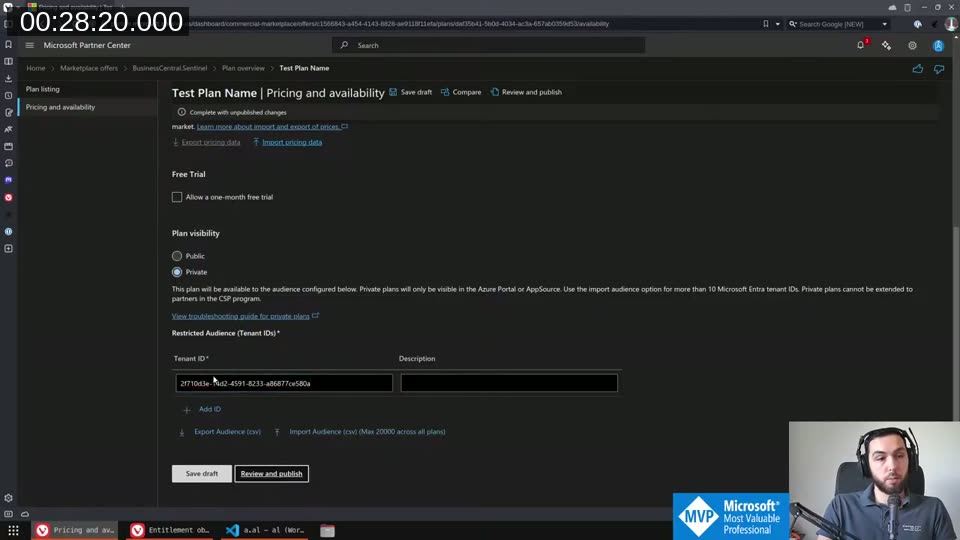
Plan visibility is worth knowing about. Setting a plan to Private and specifying tenant IDs means only users from those tenants can see and buy it in AppSource. This is how you handle custom pricing for a specific customer: create a free private plan visible only to their tenant ID, handle the actual billing yourself, and they just need to “buy” the zero-cost plan to get licensed.
💡 Added context: AppSource license assignments can take up to 72 hours to propagate into Business Central. If you need faster access, security groups (covered below) update nearly instantly.
📖 Docs: The full overview of offer setup, plan types, and transactability requirements is at Selling Business Central apps through AppSource .
Creating Entitlement Objects
An entitlement object maps an AppSource plan to a permission set. The minimal structure for a per-user offer plan looks like this:
entitlement MyApp_PerUserPlan
{
    Type = PerUserOfferPlan;
    Id = 'stefanmaronconsulting1646304351282.sentinel.testplanin';
    ObjectEntitlements = MyApp_FullAccess;
}
The Id here is the Service ID from the Plan overview in Partner Center — not the Plan ID you typed in, but the generated service identifier shown after saving. The ObjectEntitlements references a permission set.
As soon as your extension defines at least one entitlement object, licensing kicks in. Before that, all objects are implicitly accessible to everyone. The moment one entitlement exists, Business Central starts enforcing it.
All the entitlement types
There are more types than just PerUserOfferPlan. VS Code’s autocomplete shows the full list:
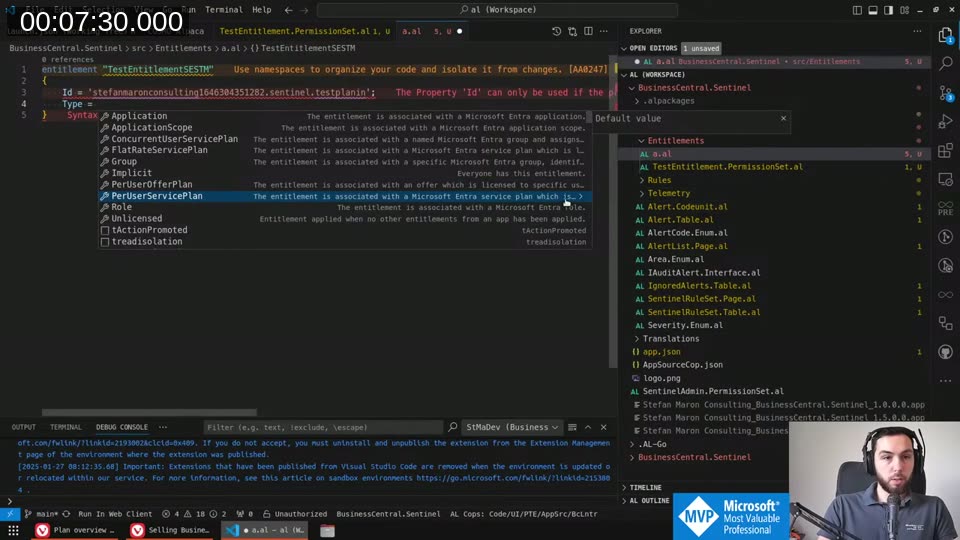
The useful ones are:
- PerUserOfferPlan — ties to an AppSource plan via the Service ID
- Unlicensed — applies to users who haven’t bought any plan; use this to give limited access (e.g. setup pages only) without requiring a license
- Implicit — similar to Unlicensed; I prefer Unlicensed since the documentation is clearer about when it applies
- Role — for predefined delegated admin access (see next section)
- Group — for Microsoft Entra security groups; members get the associated permissions without buying a license
- Application — for a specific Entra app registration by client ID
- ApplicationScope — for S2S scopes like
API.ReadWrite.AllorAutomation.ReadWrite.All
The Permission Error You’ll Hit First
Once you define any entitlement, users without a matching license get locked out immediately. The error looks like this:
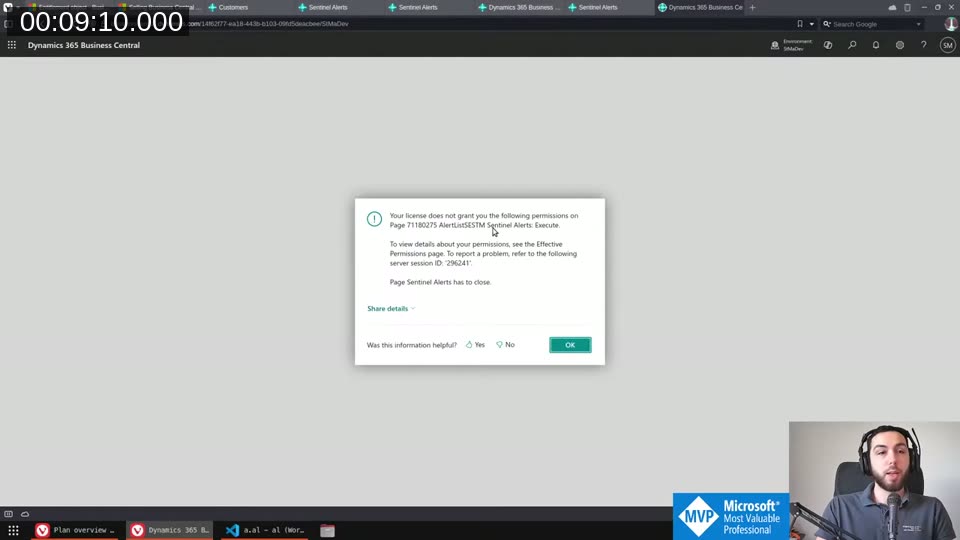
“Page Execute” is the key missing permission. This is the thing I didn’t know before: entitlement permission sets need explicit execute permissions on every object the user needs to run — both tables and pages. Regular permission sets typically only need tabledata access, but entitlement permission sets need:
table X = X(execute on the table itself, needed to run any code on the table)tabledata X = RIMDpage X = X
The official docs show this pattern with the Unlicensed entitlement as well:
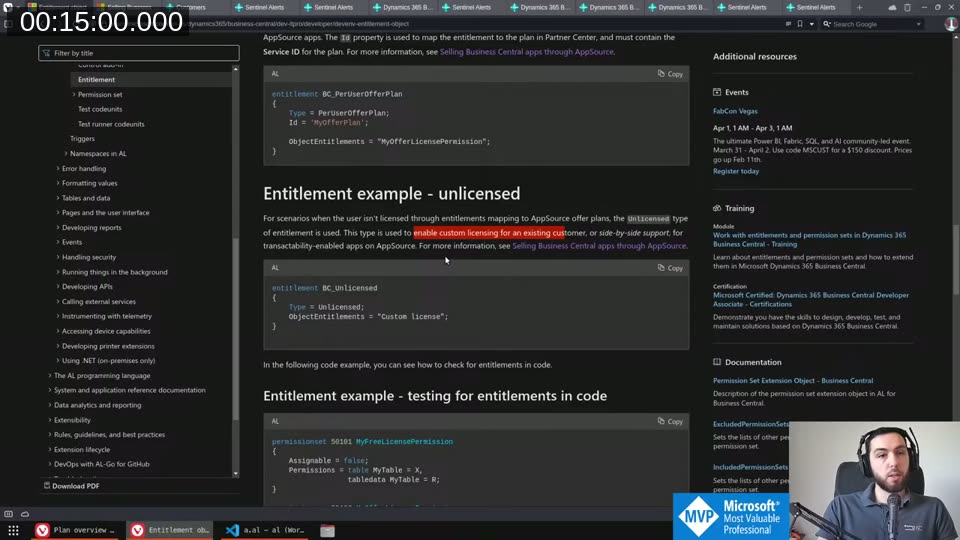
📖 Docs: The entitlement object reference is at Entitlement object — Business Central .
Predefined Entitlements for Delegated Access
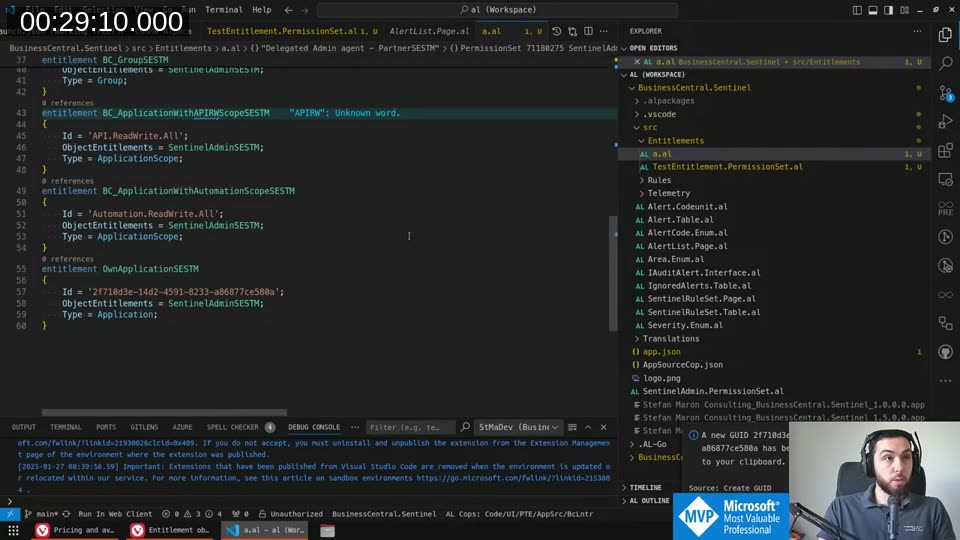
Partners with delegated admin access to customer tenants also need access to your extension. There are three fixed entitlement definitions for this, with hardcoded GUIDs that Microsoft owns:
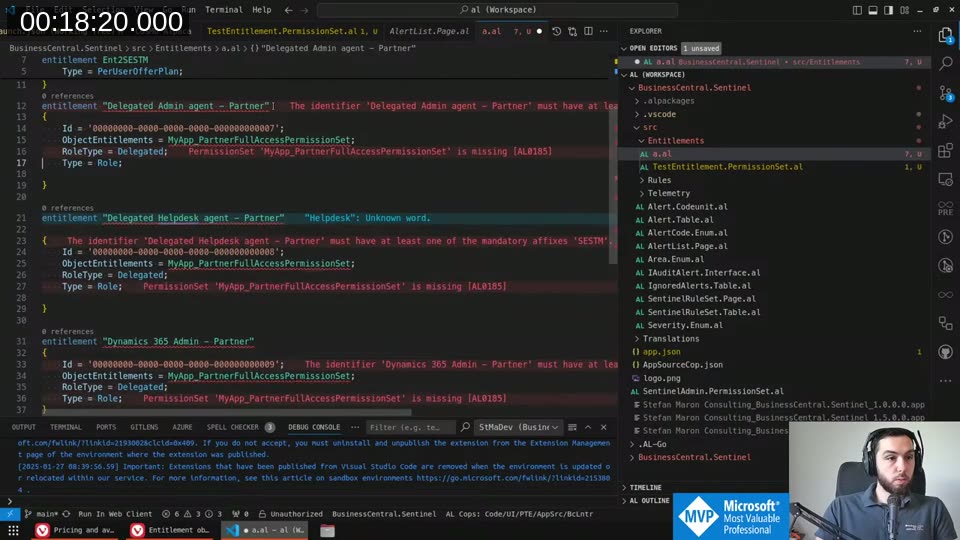
You just copy these into your extension verbatim (with your own SESTM suffix and permission set reference). I usually give delegated admins full access — they’re doing support and setup work, and there’s no real risk of license circumvention here.
Security Groups for Internal Access
You can’t easily buy your own extension’s license because Microsoft considers paying yourself a potential money laundering issue. The practical solution is a security group.
In the Microsoft 365 admin center, create a security group and copy its object ID:
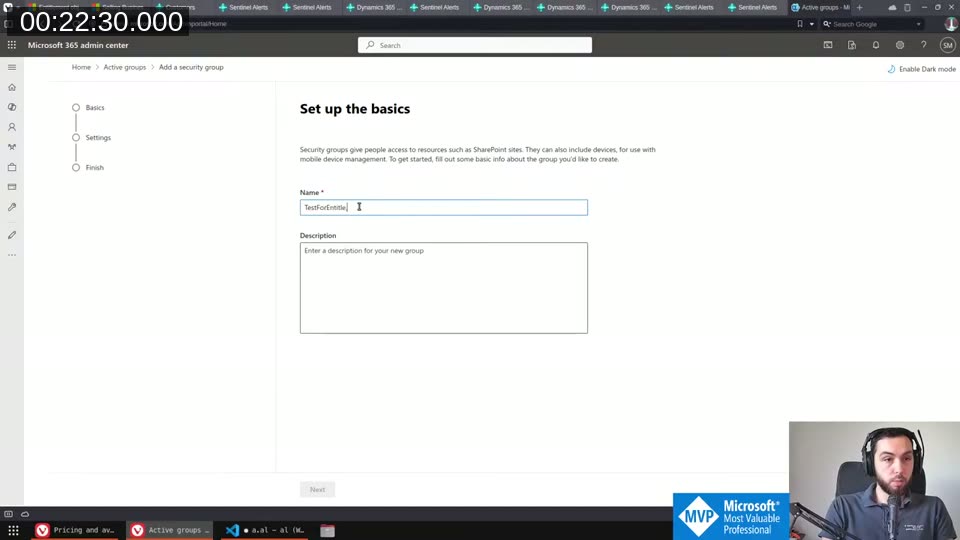
Then create an entitlement with Type = Group and the group’s GUID as the Id. Any user added to that group gets the associated permissions without needing an AppSource license. This is what I use for my own team and for internal testing on sandboxes.
Service-to-Service Authentication
S2S app registrations can’t have licenses assigned to them. To give them access to your extension, use ApplicationScope entitlements:
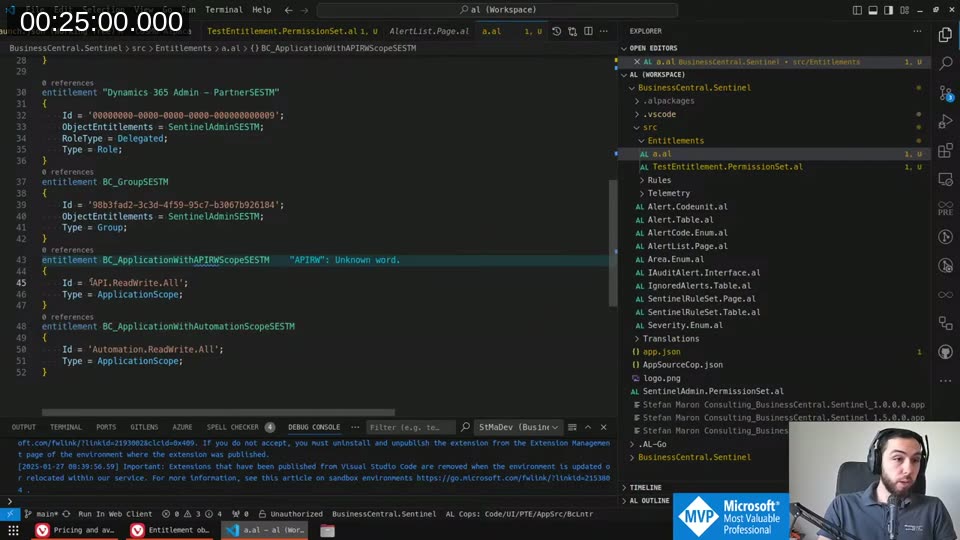
The ApplicationScope type covers any S2S connection using that scope — so API.ReadWrite.All covers all standard API integrations. If you have your own specific Entra app registration, use Type = Application with its client ID instead.
Permission Set Best Practices
Create separate permission sets specifically for entitlements, distinct from the ones you expose to users for manual assignment. The reasons:
- Entitlement permission sets need
executepermissions everywhere — those look unusual and confusing if users see them - You probably don’t want users directly assigning these sets to other users
Set Assignable = false on these permission sets so they stay invisible in the permission assignment UI:
Checking Entitlements in Code
Sometimes object-level permissions aren’t granular enough — you need to branch within a procedure based on what license the user has. The NavApp system application object provides two functions:
NavApp.IsUnlicensed(AppId)
NavApp.IsEntitled(EntitlementId, AppId)
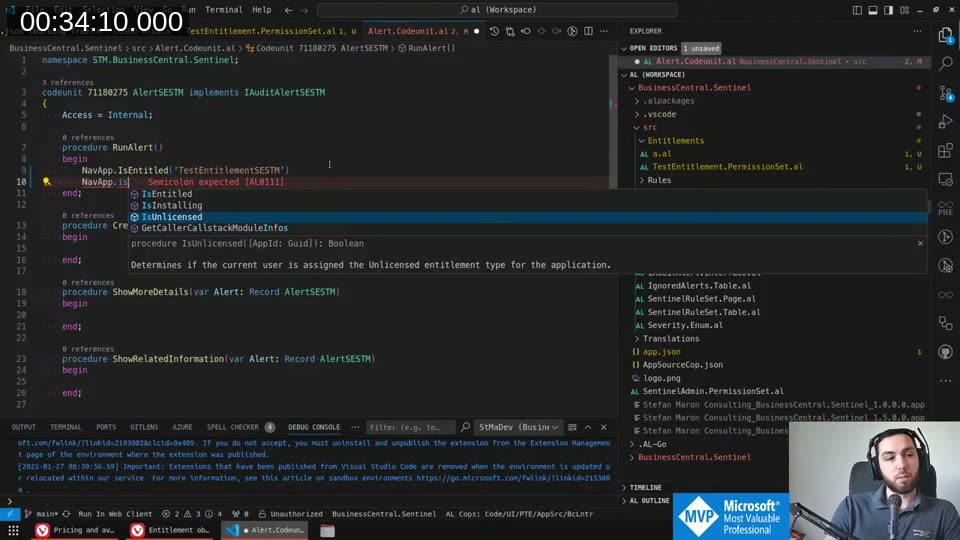
IsUnlicensed is per-application — it checks if the user doesn’t have any license assigned specifically from your extension, not whether they’re globally unlicensed. The combination that makes sense is:
if NavApp.IsUnlicensed(AppId) then
    // user has the Unlicensed entitlement from your app
else
    if NavApp.IsEntitled('BC_PerUserOfferPlan', AppId) then
        // user has a paid plan
    else
        // user has no entitlement at all from your app
📖 Docs: Both
NavApp.IsEntitledandNavApp.IsUnlicensedare documented in the NavApp method reference .
Testing
Entitlements only work in a Sandbox environment. If you publish to a Docker/BcContainerHelper container, licensing is not enforced and you won’t see any effect from your entitlement objects. I verified this during the stream — the permission error appeared in sandbox but not in Docker.
This makes testing a bit awkward, but it’s the reality. You need a live offer in Partner Center (at least in preview) and a sandbox to properly validate the full flow.
This post was drafted by Claude Code from the stream transcript and video frames. The full stream is on YouTube if you want the unfiltered version. (I did read and check the output before posting, obviously 😄)