Basic Repo Setup with AL-Go
Every new Business Central project starts with the same question: how do I get from zero to a working CI/CD pipeline without wasting a day on config? This stream walks through the entire setup — from clicking “Use this template” on GitHub all the way to running a release and deploying to an environment.
The full stream is on YouTube if you want to follow along in real time.
Choosing your AL-Go template
I use AL-Go for all my projects. It gives you a full set of pre-wired GitHub Actions workflows out of the box — CI/CD, test runs, next major/minor pipelines, release creation, and environment deployment. The alternative camp is DevOps/Azure Pipelines, but I’ve settled on AL-Go and I’m happy with it.
The first decision is which template to start from:
- AL-Go-PTE — for per-tenant extensions. This is my default.
- AL-Go-AppSource — for AppSource apps sold on the marketplace.
- AL-Go-Actions — only for advanced scenarios where you want to fork and modify the underlying actions themselves.
For the vast majority of projects, you pick PTE or AppSource and never touch the Actions template.
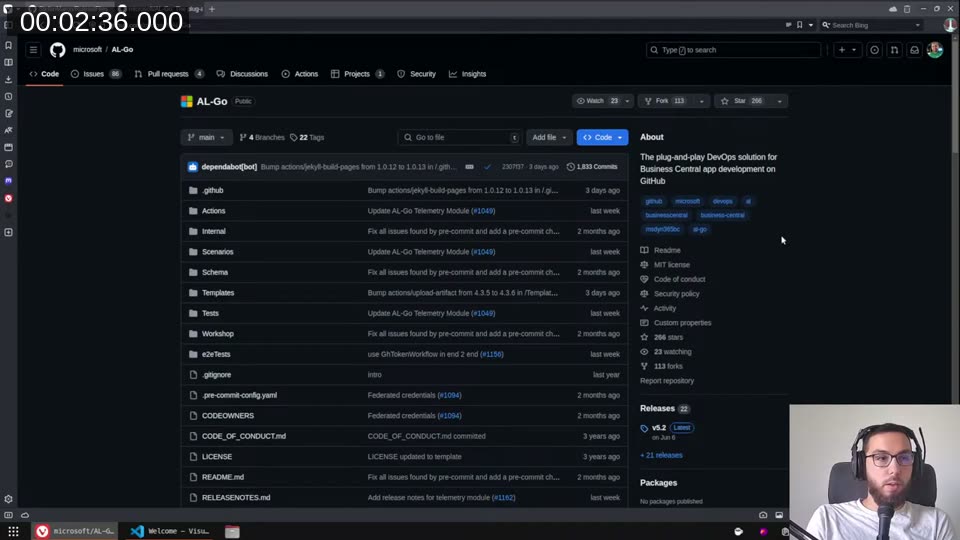
The AL-Go README has a useful usage scenarios section — Freddy created a set of numbered walkthroughs covering most common tasks. The settings reference is the document I keep open constantly. When a pipeline does something unexpected, that’s where I go first.
📖 Docs: The AL-Go settings.md is the canonical reference for every knob you can turn. It covers
environments,DeployTo<environmentname>,appDependencyProbingPaths,customCodeCops, and much more.
Creating the repository
Go to the PTE template, click Use this template → Create a new repository, pick an owner and name, and hit create. You’ll land on a fresh repo with one branch and one initial commit.
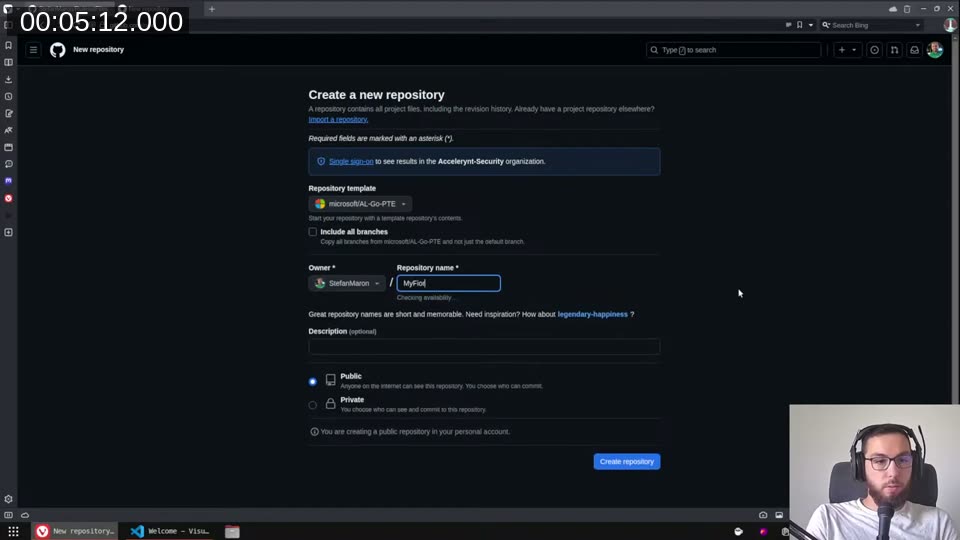
The initial commit already fires a CI/CD run — it won’t do much because there’s no AL code yet, but it validates the setup.
Adding your first app
Rather than creating the AL project manually, use the Create a new app action built into the repo. Go to Actions → “Create a new app”, click “Run workflow”, and fill in:
- Name — your app name
- Publisher — your publisher name
- ID range — e.g.
60800..60900(use two dots, not a dash) - Include Sample code — tick this if you want a HelloWorld starting point
- Direct Commit — tick this to push straight to main instead of opening a PR
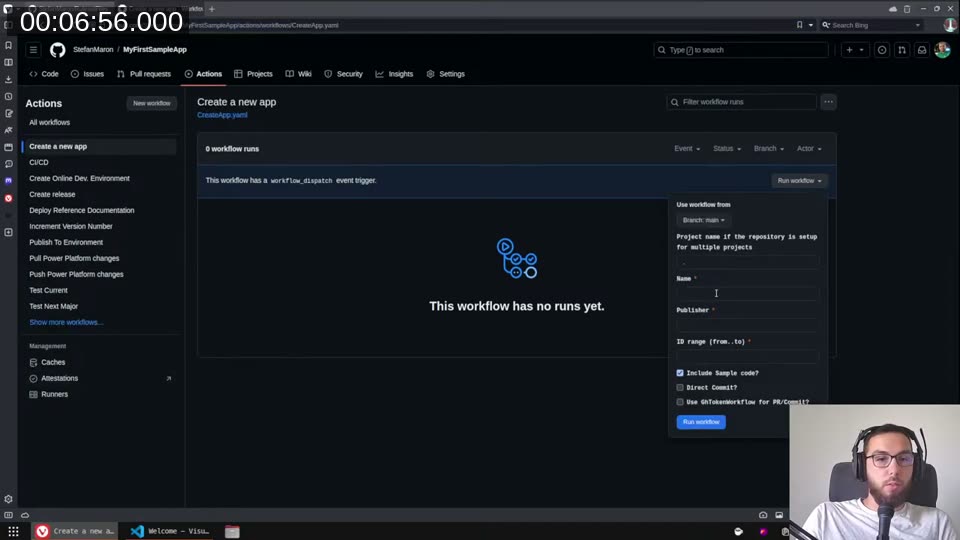
The action commits the app folder structure — app.json, a sample AL file, and an updated .al-code-workspace — directly to the repo. You can then clone locally and open the workspace.
The same flow works for adding a test app and a performance test app. I usually add all three at the start.
Adjusting AL-Go settings
Once you’ve cloned and opened the workspace in VS Code, the file to focus on is .AL-Go/settings.json. A few things I always change:
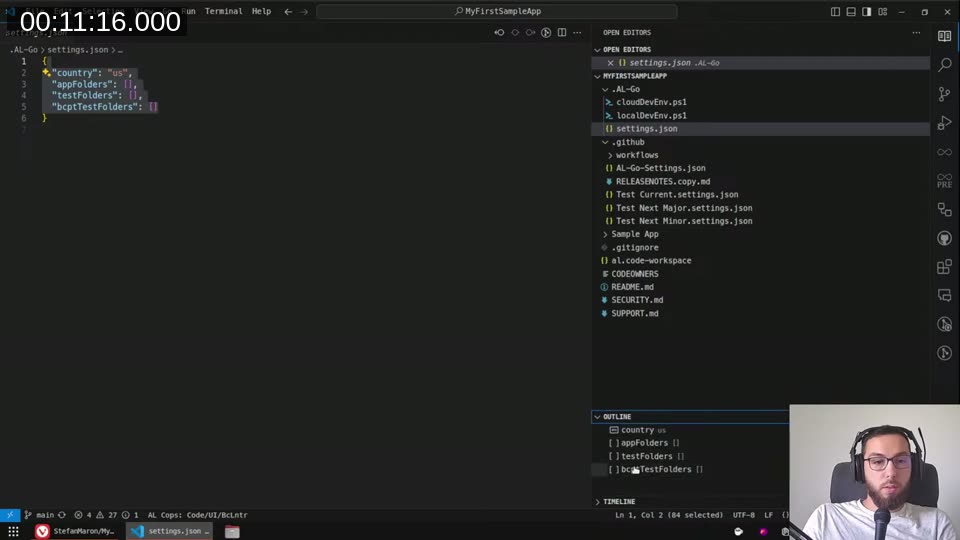
country — defaults to us. For AppSource apps I set this to W1 so the artifact pulled during builds is the international version.
appSourceCopMandatoryAffixes — add your publisher prefix here (e.g. ["SMC"]). The AppSource Cop needs this to validate object naming.
enableAppSourceCop — set to true even on PTE projects. I run all the cops all the time. There are warnings in the AppSource Cop that the PTE Cop doesn’t catch, and vice versa — running both gives you better coverage regardless of your delivery target.
enableExternalRuleSets — set to true when you’re using an external ruleset file hosted on GitHub (more on this below).
rulesetFile — path to your local ruleset JSON, e.g. "custom.ruleset.json".
runtime — set this explicitly. The template doesn’t always stay current, and if you leave it unset, the next-major/next-minor pipelines will infer the runtime from the target, which causes surprising failures. I pin it to match my current BC version, e.g. "13.0" for BC 2024.
Shared ruleset files
I keep a separate repo — StefanMaron/RulesetFiles — that holds my shared base rulesets. There are currently three:
base.ruleset.json— rules I want to override everywhere: file naming, the “interfaces must start with I” rule,InternalsVisibleToused as a security feature, and unknown application areas (I use those for feature flags).pte.ruleset.json— includes the base ruleset, then silences AppSource-specific warnings that don’t apply to PTE (manifest warnings, partner range, no translations needed).appsource.rulset.json— the AppSource variant, promotes theaccessproperty warning, adjusts things that only matter for marketplace submissions.
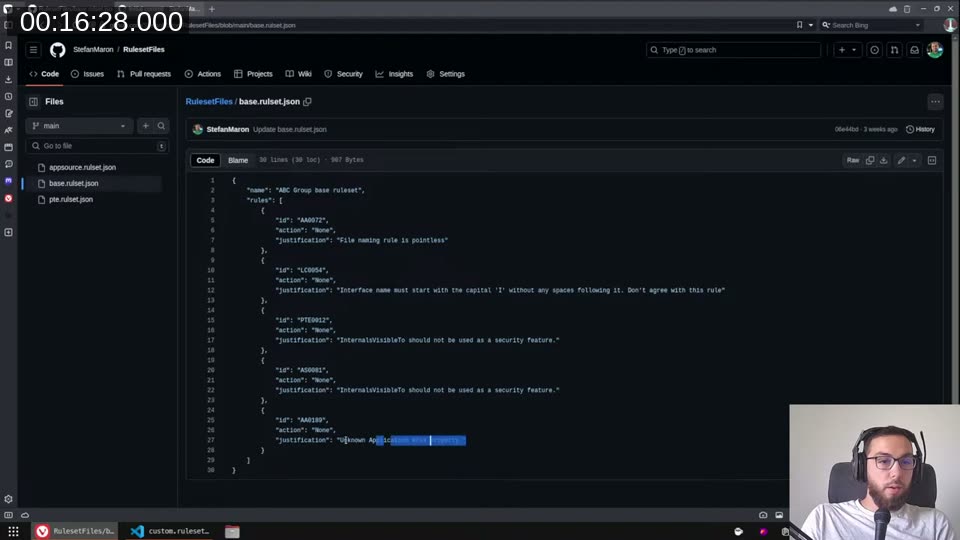
The custom.ruleset.json in each project repo then just points to the appropriate shared ruleset via its raw GitHub URL:
{
  "name": "Custom",
  "description": "Description",
  "includedRuleSets": [
    {
      "action": "Default",
      "path": "https://raw.githubusercontent.com/StefanMaron/RulesetFiles/main/pte.rulset.json"
    }
  ],
  "rules": []
}
This way, when I update a rule centrally in RulesetFiles, it propagates to all repos on the next build — no per-repo edits needed.
💡 Added context: The
includedRuleSetsfeature requiresenableExternalRuleSets: trueinAL-Go/settings.json. This tells AL-Go to allow the compiler to fetch rule definitions from external URLs during the build.
Workspace settings and code analyzers
In the VS Code workspace settings (.al-code-workspace → settings), I wire up the code analyzers and the ruleset path:
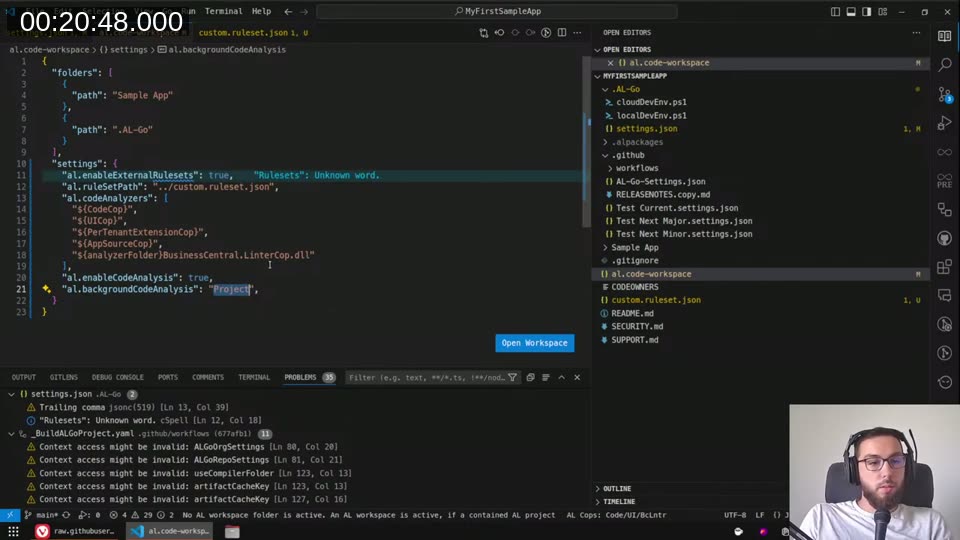
{
  "al.enableExternalRulesets": true,
  "al.ruleSetPath": "../custom.ruleset.json",
  "al.codeAnalyzers": [
    "${CodeCop}",
    "${UICop}",
    "${PerTenantExtensionCop}",
    "${AppSourceCop}",
    "${analyzerFolder}BusinessCentral.LinterCop.dll"
  ],
  "al.enableCodeAnalysis": true,
  "al.backgroundCodeAnalysis": "Project"
}
Two things worth calling out:
- Forward slashes on Windows —
../custom.ruleset.jsonworks fine on Windows. Backslashes break everyone else. Just use forward slashes. al.ruleSetPathuses the parent directory — the workspace settings apply as if you’re in the workspace folder, so the path needs to go up one level to reach the file at repo root.
If you’re working on a large project and background analysis is slow, switch backgroundCodeAnalysis from "Project" to "File" to analyze only the currently open file.
Defining environments
Back in .AL-Go/settings.json, I add the environments I want to deploy to:
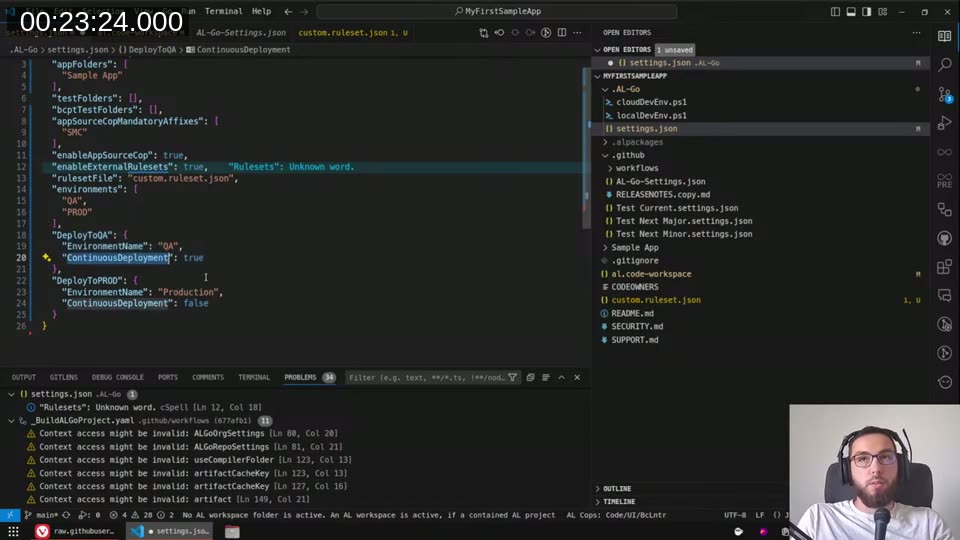
{
  "environments": ["QA", "PROD"],
  "DeployToQA": {
    "EnvironmentName": "QA",
    "ContinuousDeployment": true
  },
  "DeployToPROD": {
    "EnvironmentName": "Production",
    "ContinuousDeployment": false
  }
}
The EnvironmentName inside DeployTo<X> is the actual name of the environment at the customer — it can differ from the key name. ContinuousDeployment: true means every successful build on main triggers an automatic deploy to that environment. For QA this is fine; for production, definitely set it to false.
Organization-level settings via repository variables
For settings that should apply across all my repos, I use a GitHub repository variable named ALGOORGSETTINGS. You set this under Settings → Secrets and variables → Actions → Variables.
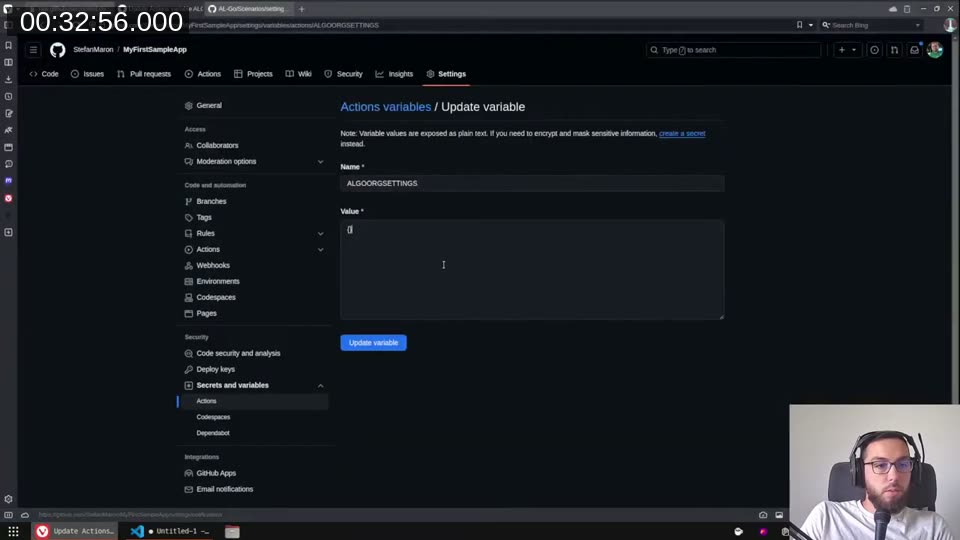
The value is a JSON object. Here’s what I keep at org level:
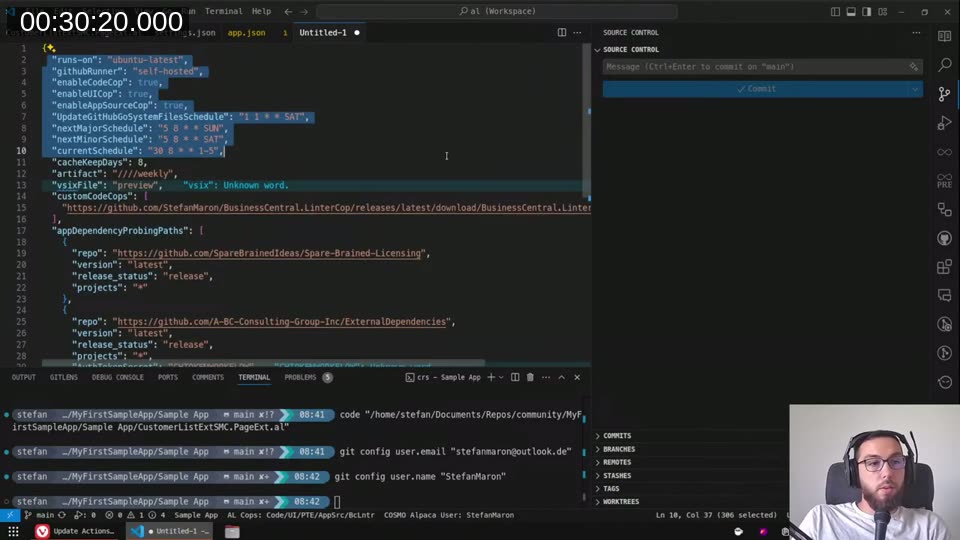
{
  "runs-on": "ubuntu-latest",
  "githubRunner": "self-hosted",
  "enableCodeCop": true,
  "enableUICop": true,
  "enableAppSourceCop": true,
  "UpdateALGoSystemFilesSchedule": "1 1 * * SAT",
  "nextMajorSchedule": "5 8 * * SUN",
  "nextMinorSchedule": "5 8 * * SAT",
  "currentSchedule": "30 8 * * 1-5",
  "cacheKeepDays": 8,
  "artifact": "////weekly",
  "vsixFile": "preview",
  "customCodeCops": [
    "https://github.com/StefanMaron/BusinessCentral.LinterCop/releases/latest/download/BusinessCentral.LinterCop.dll"
  ],
  "appDependencyProbingPaths": [
    {
      "repo": "https://github.com/SparseBrainedIdeas/Spare-Brained-Licensing",
      "version": "latest",
      "release_status": "release",
      "projects": "*"
    }
  ]
}
A few notes on specific settings:
artifact: "////weekly"— pins the BC artifact to weekly cadence instead of always-latest. This dramatically reduces pipeline run times because you’re not pulling a fresh artifact on every build.vsixFile: "preview"— I use the preview compiler so LinterCop’s preview rules work correctly.customCodeCops— points to the latest LinterCop release download URL. AL-Go downloads and caches this before each build.appDependencyProbingPaths— I use Spare-Brained Licensing as a dependency across many projects, so I resolve it here at org level rather than per-repo.
📖 Docs:
appDependencyProbingPathssupports specifyingversion,release_status(release,prerelease,draft,latest), andprojects. See the AL-Go settings reference for the full schema.
Secrets for deployment
Two secrets are needed for deployment to work:
GHTOKENWORKFLOW — a GitHub Personal Access Token with workflow permissions. AL-Go uses this to update its own system files via the scheduled UpdateALGoSystemFiles workflow. Add it as a repository secret (or org secret so it applies everywhere).
<ENVIRONMENTNAME>_AUTHCONTEXT — one secret per environment, named after the environment key in your settings. The value is a JSON object with your service-to-service authentication credentials:
{
  "TenantId": "<tenant-id>",
  "ClientId": "<client-id>",
  "ClientSecret": "<client-secret>"
}
This is the standard client credentials flow. Once it’s in place, the pipeline authenticates to Business Central via Microsoft Entra ID and deploys without any manual intervention.
AppSourceCop.json
If you’re running the AppSource Cop (and you should be, even on PTE), you need a file called AppSourceCop.json in the app folder. At minimum it needs the mandatory affixes:
{
  "mandatoryAffixes": ["SMC"]
}
Without this file, the AppSource Cop silently skips some of its checks — including the affix validation that catches incorrectly named objects.
Creating a release and deploying
When it’s time to ship, I go to Actions → “Create release” and run the workflow:
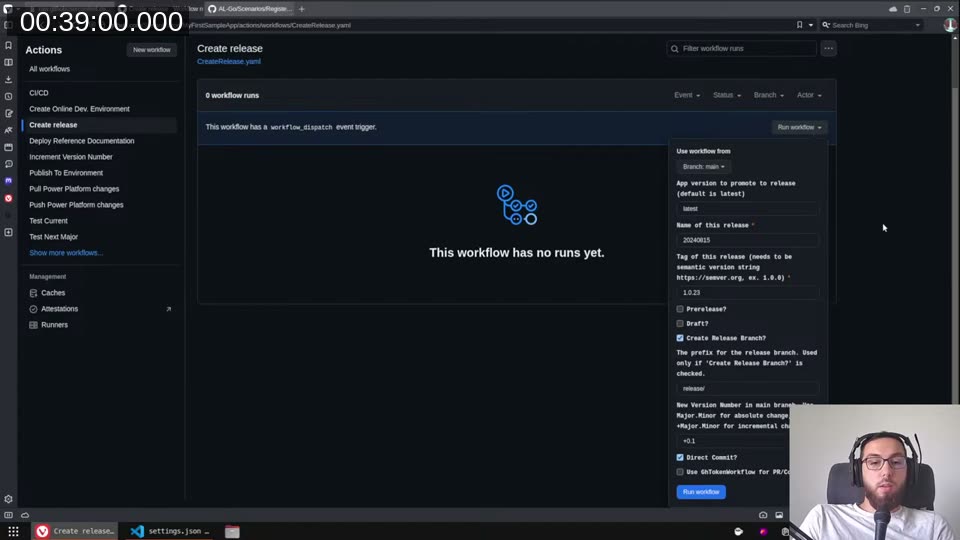
Parameters I fill in:
- App version — leave as
latestto pick up the version fromapp.json - Name of this release — I use the date in reverse, e.g.
20240815 - Tag — semantic version from
app.json, e.g.1.0.23— note you need exactly three parts; the fourth (revision) doesn’t work here - Create Release Branch — tick this; it gives you a branch to cherry-pick hotfixes onto later
- New Version Number — I increment by
+0.1so the next build becomes1.1 - Direct Commit — tick this
The workflow creates a GitHub Release, attaches the compiled .app files as release assets, and optionally creates the release branch.
To deploy, go to Actions → “Publish To Environment”:
- App version —
current(the current GitHub Release) orlatest(latest build artifacts from main) - Environment mask —
*for all environments,PROD*for anything starting with PROD, or the exact name
If an environment already has the same or a newer version installed, AL-Go skips it — so * is safe even when QA is ahead of production.
For hotfixes: cherry-pick onto the release branch, let CI build it, then run “Create release” again with the release branch selected. Switch the branch selector at the top of the workflow run UI, enter the corrected version, and you get a new release on that branch. “Publish To Environment” with current will then pick up that release correctly.
This post was drafted by Claude Code from the stream transcript and video frames. The full stream is on YouTube if you want the unfiltered version. (I did read and check the output before posting, obviously 😄)