If You Can't Make It Fast, Make It Feel Fast
There is a lot of guidance on writing high-performance AL code, and that guidance is right — optimization should always come first. But sometimes, no matter how good your code is, an operation just takes time. Large data volumes, complex processing, external dependencies. At some point you hit a wall.
This is the topic Henrik Helgesen and I covered in a webinar for Areopa . You can watch the full recording on YouTube if you want to follow along. The code examples from the demos are on GitHub at StefanMaron/BackgroundSessionDemo .
Perception Is Reality
I opened with a story from the Houston airport. Passengers kept complaining about long baggage wait times. The airport hired more baggage handlers — and complaints barely dropped. Further investigation revealed passengers only spent about one minute walking from the gate to claim. The fix? Move the arrival gate further away, so the walk took longer. Complaints dropped significantly without touching the actual baggage process.

The parallel for BC development is direct. If users are blocked waiting for a process that doesn’t require their input, that is a design choice — not a performance constraint.
A Real-World Example
Henrik’s real-world case was a medical device manufacturing facility. Around 2,500 orders a day, 85% bespoke hearing aids, production planning triggered on every order release. With 20 users releasing orders simultaneously, they hit 2-minute waits and deadlocks. Standard optimization made things better, but not enough.
The insight came from how BC’s own warehousing works: releasing an order doesn’t create a pick immediately — it creates a warehouse request, and the pick gets created later by a separate process. They applied the same pattern to production planning. On release, write a record to a planning request table. That’s it. The user is done. The actual production order planning happens in the background via a Job Queue.
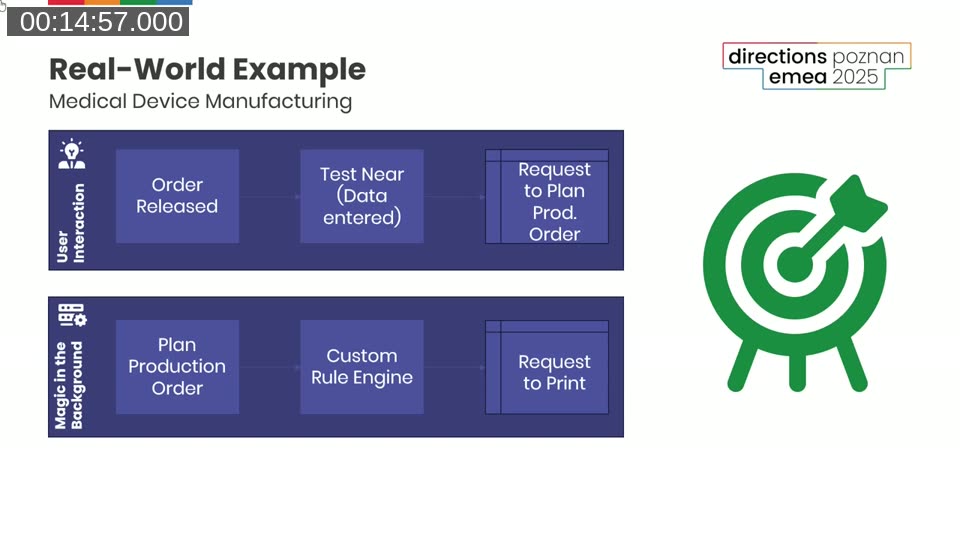
The results were better than expected.
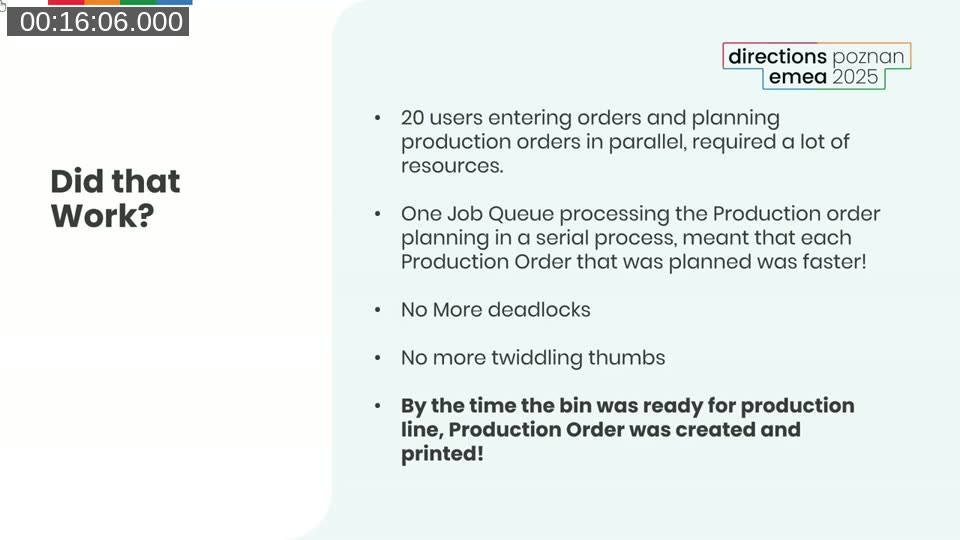
Running 20 production plannings in parallel required competing for the same database resources. Running them serially via a Job Queue meant each individual planning was actually faster — and users got immediate feedback from the moment they pressed release.
This is also something Microsoft acknowledges directly in the documentation:
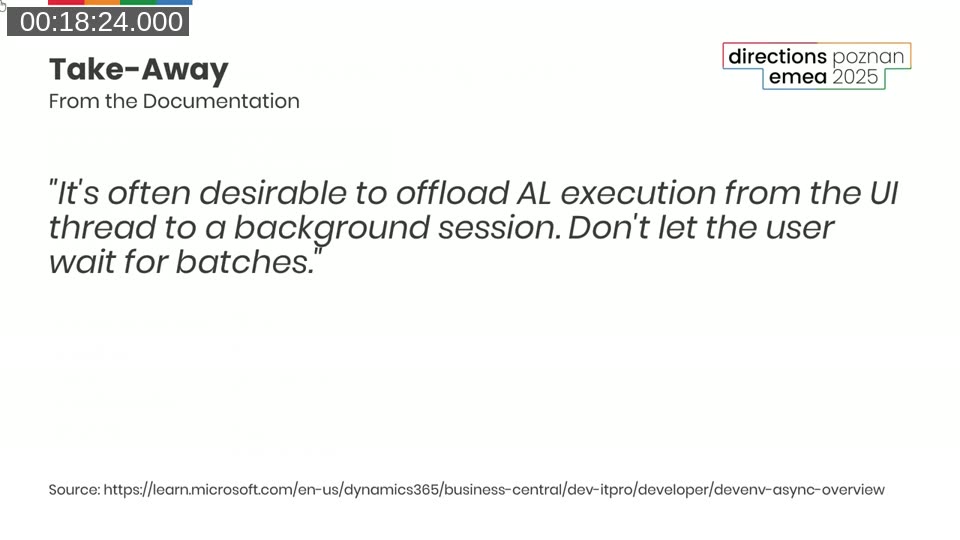
📖 Docs: This quote is from the Async overview for Business Central developers on Microsoft Learn.
The Toolkit
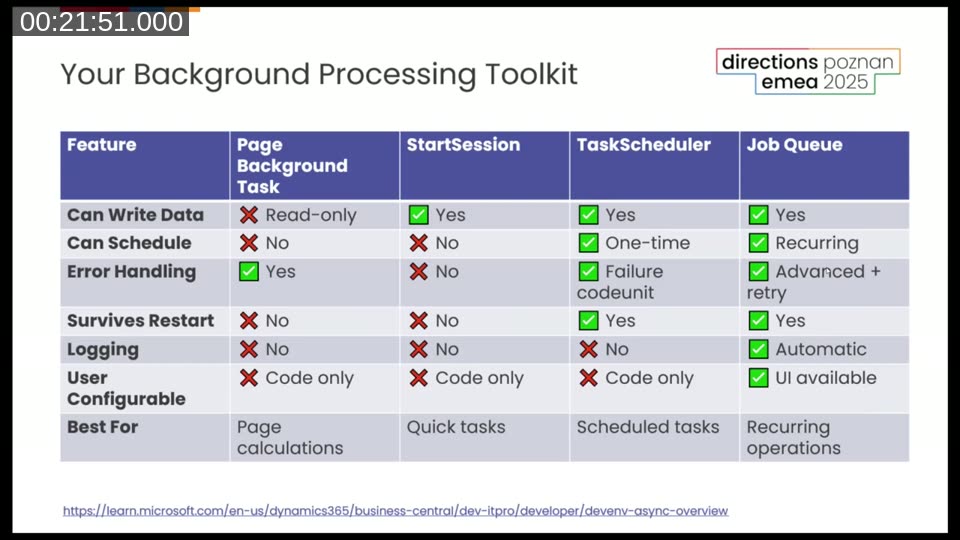
BC gives you four options for background processing. They build on each other, and each is suited for different scenarios.
Page Background Tasks
Designed for one thing: loading calculated data for a page without blocking the UI thread. Read-only by design. The session gets cancelled if the record changes or the page closes — so it is not suitable for list pages. Parameters and results are passed as a Dictionary of [Text, Text].
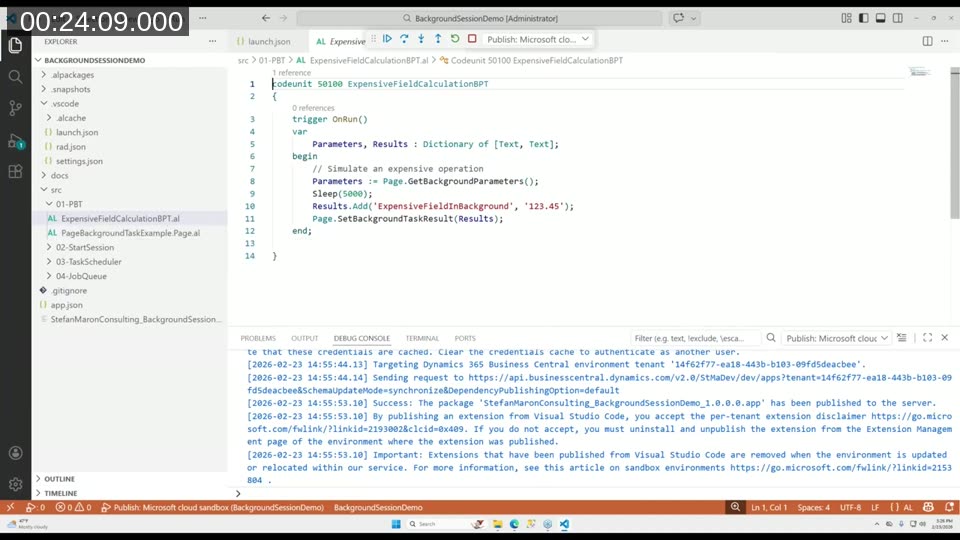
The practical difference: if you put an expensive calculation directly in a FlowField or FactBox, it blocks the page from opening. Put the same calculation in a Page Background Task and the page opens immediately — the value fills in after a couple of seconds. Users barely notice.
StartSession
The foundation for everything else. Can write data, runs in its own transaction, can be called from anywhere in code. No scheduling, no error handling, no logging. It runs on the same NST as the calling session. Good for quick fire-and-forget tasks where failure is either impossible or doesn’t matter.
TaskScheduler
Built on top of StartSession but backed by a database table, which means it survives NST restarts. Tasks can be scheduled for later (NotBefore), and you can specify a failure codeunit for error handling. Still code-only — no user UI.
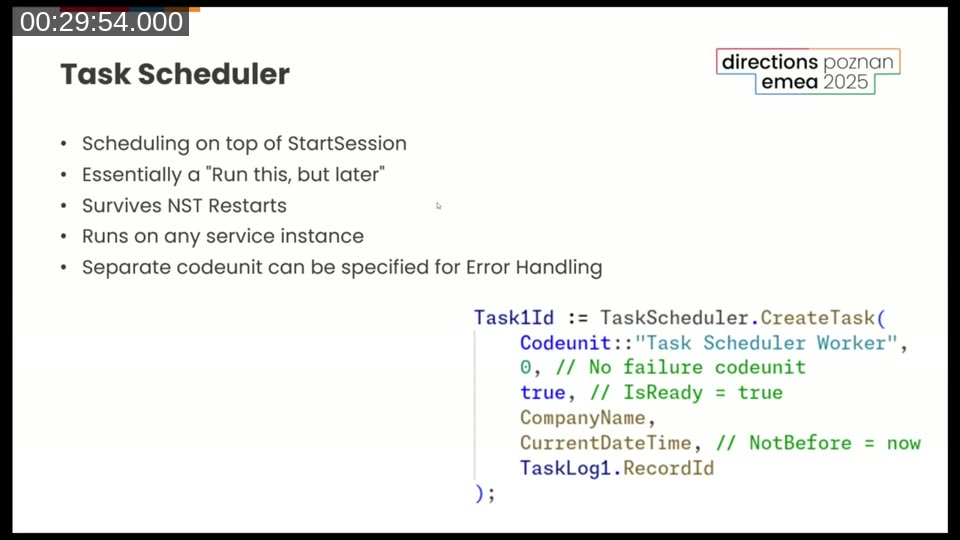
One interesting detail from the base app: the Change Global Dimensions functionality uses TaskScheduler directly, and when tasks fail it writes entries to the Job Queue Log Entry table — reusing an existing logging structure rather than building a new one. Worth knowing if you want to follow the same pattern.
Job Queue
The most capable option. Recurring scheduling, automatic logging, user interface. For anything that needs to run repeatedly on a schedule — or where you want administrators to be able to manage and monitor execution — the Job Queue is the right tool.
Henrik’s strong recommendation: recurring Job Queue entries should never error. Use Codeunit.Run with error handling, or wrap logic in if not Codeunit.Run(...). A stopped recurring job that nobody notices is a common and costly problem. His pattern: the recurring entry only finds work to do — it creates transactional Job Queue entries for the actual processing. If one of those fails, the recurring entry keeps running and the others process fine.
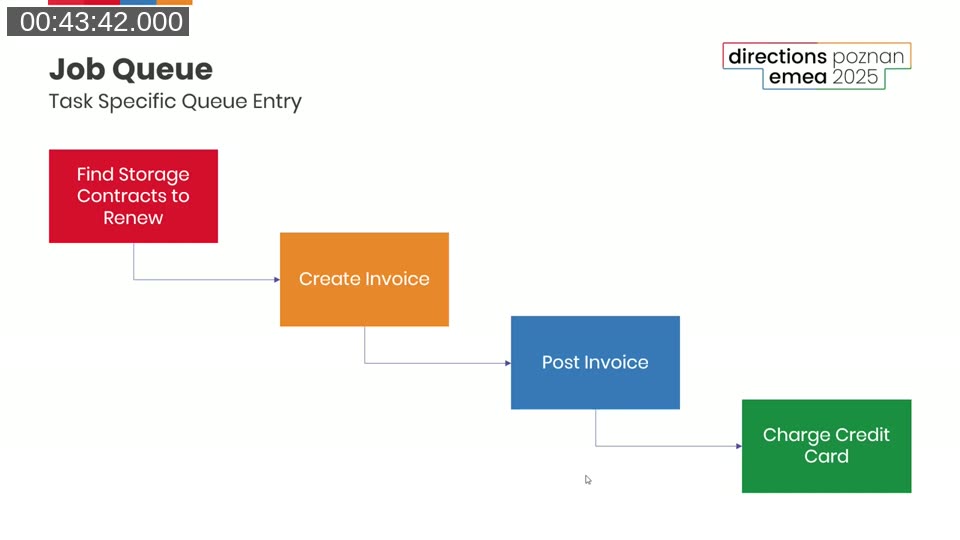
This chained approach also gives you per-record isolation. If the invoice for one customer can’t be posted, it doesn’t prevent any other customer’s invoice from processing.
💡 Added context: The Job Queue Category field is worth using if you’re flooding the queue with many entries. Entries in the same category are processed together by a dedicated dispatcher, so a heavy batch doesn’t block unrelated jobs from running. See the Job Queue docs for details.
The Cloud Advantage
There is an architectural angle to this that is specific to BC online. Page Background Tasks and StartSession always run on the same NST as the calling session — they are bound to it. TaskScheduler and Job Queue are different: they are backed by the database, so any NST in the cluster can pick them up.
This matters because of how BC online auto-scales. The platform continuously monitors load across server instances. When an NST exceeds its resource threshold, BC spins up additional instances automatically — no manual intervention, no configuration needed. The service scalability documentation documents a telling stat from Microsoft’s own telemetry: 99.81% of session time runs on compute nodes with ample resources. To put that number in perspective — for a user working 4 hours a day, 5 days a week, that’s less than 2.5 minutes per week where their session might encounter resource pressure.
The practical implication for background processing: if you push heavy work into TaskScheduler or Job Queue entries, that work can be distributed across whichever NST in the cluster has capacity. UI sessions become more responsive because their NST isn’t competing with batch workloads. StartSession stays local — the heavy work lands on the same server the user is on. For quick, low-impact tasks that’s fine. For anything that processes hundreds of records, you probably want TaskScheduler or Job Queue instead.
There are also per-user concurrency limits worth knowing about. For scheduled tasks and Job Queue, the limit is 5 concurrent tasks per user. If you need higher throughput, the answer is to run jobs under different user identities — each gets its own pool of 5. The service scalability docs cover this, including real-life measurements of environments processing 350,000 Job Queue entries in a single day.
📖 Docs: Full details on limits and the auto-scaling architecture are in the Service scalability for Business Central online article and the Async processing overview , which also has the comparison table of which session types run cross-cluster.
Takeaways
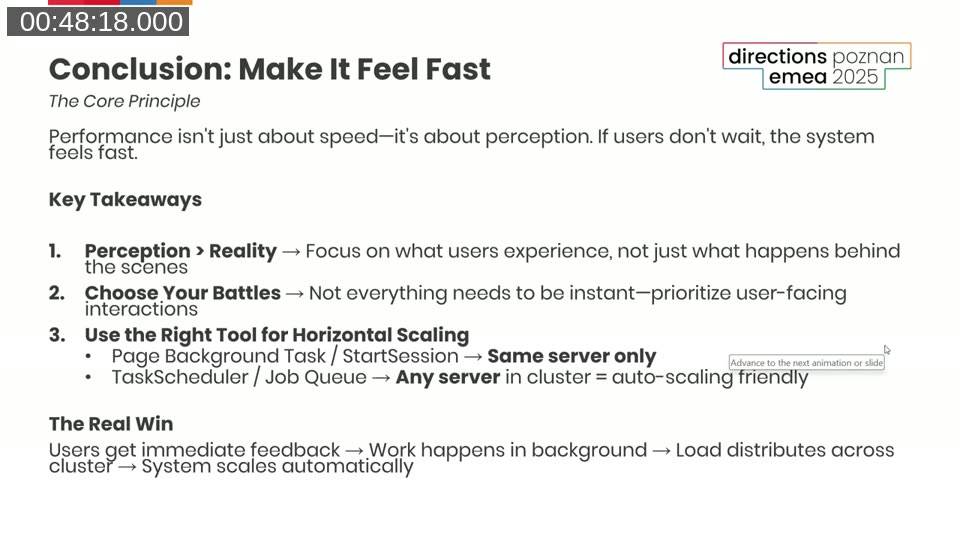
The short version: if a process doesn’t require the user to be present, don’t make the user wait for it. This isn’t just a performance trick — it’s often the difference between a BC implementation that feels snappy and one that users complain about constantly.
The 80/20 rule applies. Low-hanging fruit like missing SetLoadFields or read isolation — fix those immediately. Squeezing out the last few milliseconds from something that takes two minutes? Probably not worth the hours. At that point, rethink whether the user needs to be in the loop at all.
This post was drafted by Claude Code from the webinar recording transcript and video frames, based on a webinar I co-presented with Henrik Helgesen for Areopa. The full recording is on YouTube if you want the unfiltered version. (I did read and check the output before posting, obviously 😄)