MsDyn365BC.Code.History Tips & Tricks
If you’ve ever tried to search for something in the MsDyn365BC.Code.History repository directly on GitHub, you’ve probably noticed it stopped working. The GitHub code search just returns no results. You can watch the full stream on YouTube if you want to follow along.
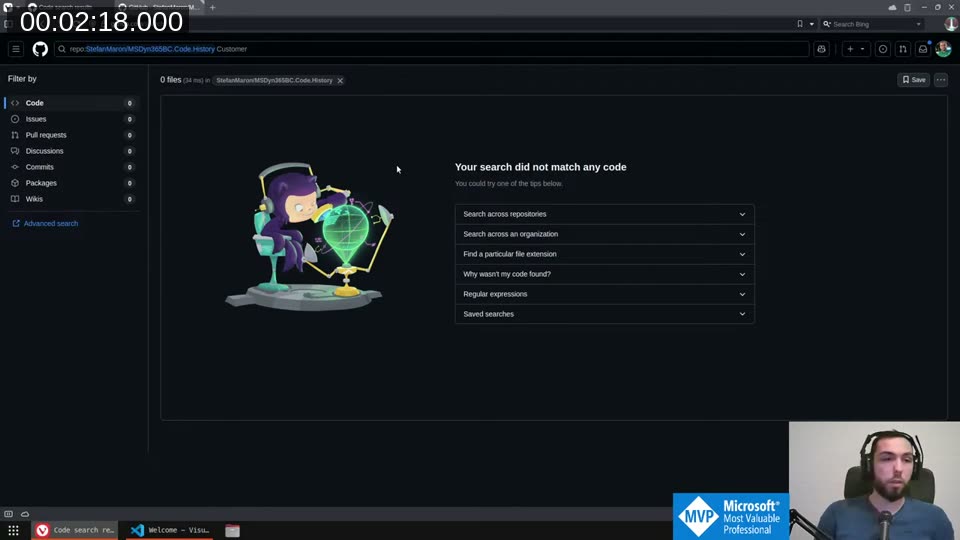
The fix is simple: open the repository in the browser-based VS Code instead. Just navigate to the repo and press . on your keyboard — or change github.com to github.dev in the URL. That opens VS Code in your browser with the full repository loaded.
📖 Docs: The github.dev editor is documented in the GitHub Docs . Note that not all VS Code extensions work in the browser — only those built as web extensions. The AL language extension doesn’t support the browser, so you won’t get syntax highlighting, but searching and diffing work fine.
Switching to the right branch first
One important thing: the master branch doesn’t contain any BC code. It only holds scripts and workflow files. You need to switch to a version branch like w1-25 first. Do that on GitHub’s branch switcher before pressing ., and VS Code will inherit the correct branch.
Once you’re on a code branch, the full-text search works well. It needs a moment to index on first use, but after that it’s fast.
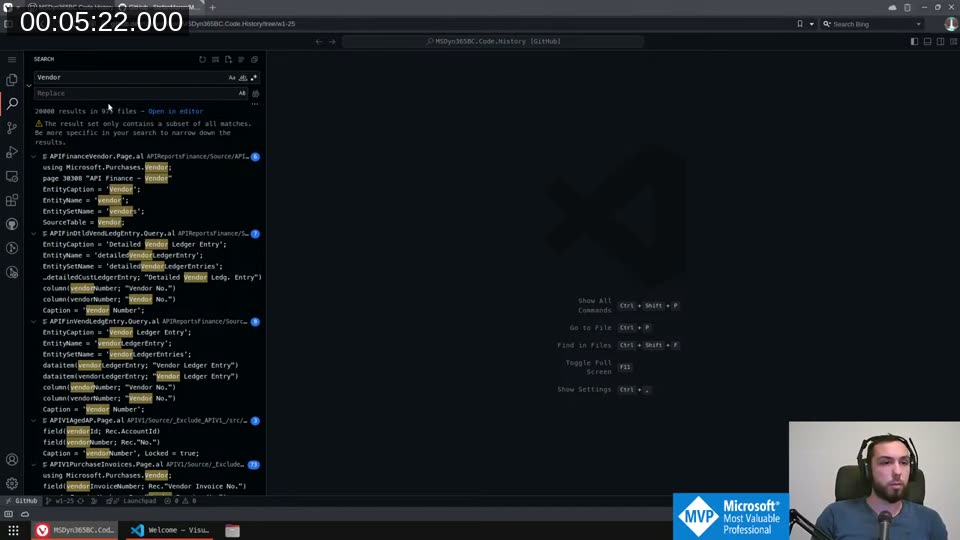
The search supports regex, case sensitivity, and whole-word matching. There’s also a handy “collapse all” button to hide individual match lines and just see the file list — I use that a lot. You can also open the results as an editor tab if that’s more comfortable.
For searching by filename rather than content, Ctrl+P is your friend. It does fuzzy matching across the full path, so you can type parts of a folder name and a filename separately and it will narrow things down.
Looking at what changed in a file
Once you’ve opened a file in browser VS Code, the Timeline view at the bottom of the file explorer shows all the commits for that file across the repository history.
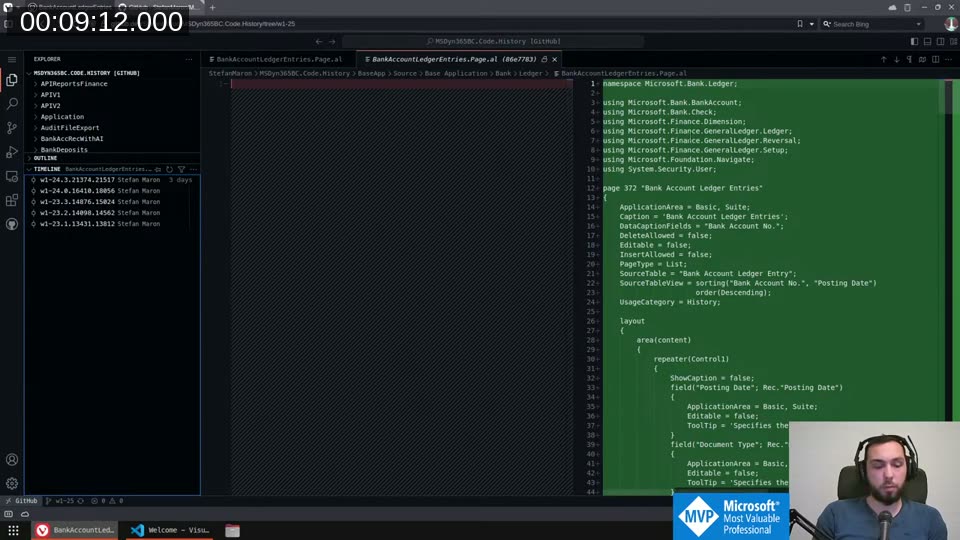
Click any entry and you see what changed in that particular commit. Click a second entry to get a side-by-side diff between two specific commits.
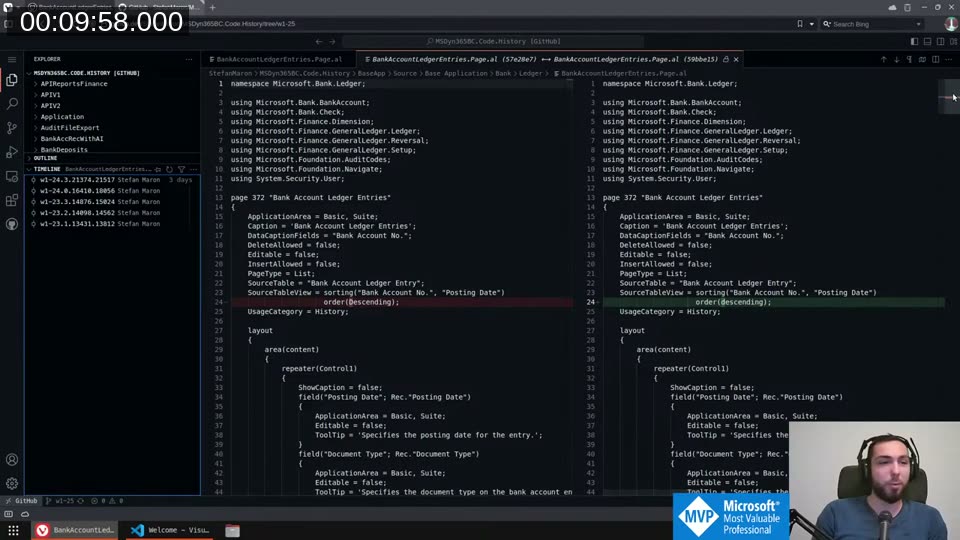
If you want to compare across a larger version gap — say, everything that changed between v22 and v25 for one file — right-click the older commit, choose Select for Compare, then right-click the newer one and choose Compare with Selected. That gives you all the changes at once in a single diff.
Comparing across branches in the browser version is more limited. If you switch branches, the page reloads and loses your selection. For cross-branch comparisons, you really want a local clone.
Cloning only what you need
Cloning the entire repository takes a long time and eats disk space because there are ~250 branches. The README documents the recommended approach: clone a single branch with --single-branch.
git clone -b w1-25 --single-branch https://github.com/StefanMaron/MSDyn365BC.Code.History
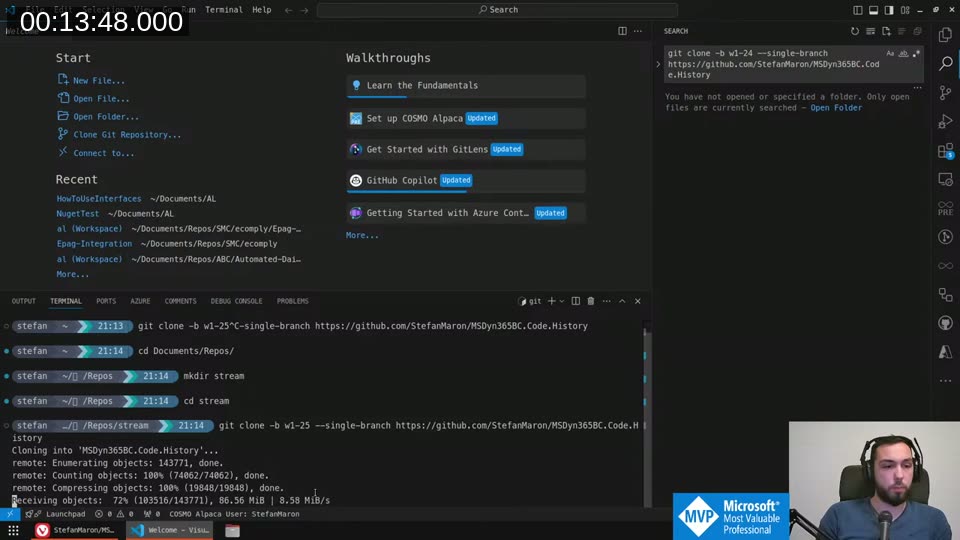
That’s much faster. You can always add more branches later without re-cloning. If you want to go further, the README also documents a shallow clone option using --depth to limit how many commits you pull — useful if you only care about recent versions.
💡 Added context:
--depthimplies--single-branchunless you also pass--no-single-branch. Sogit clone -b w1-25 --depth 50 --single-branch ...gives you the last 50 commits on that branch only. You can deepen it later withgit fetch --deepen 50. See git-clone docs for details.
📖 Docs: The full list of clone options and branch management commands is in the repository README .
GitLens for comparing entire version ranges
Once you have a local clone, the GitLens extension becomes very useful. The Source Control Graph shows every commit on the branch — not just the commits for a specific file.
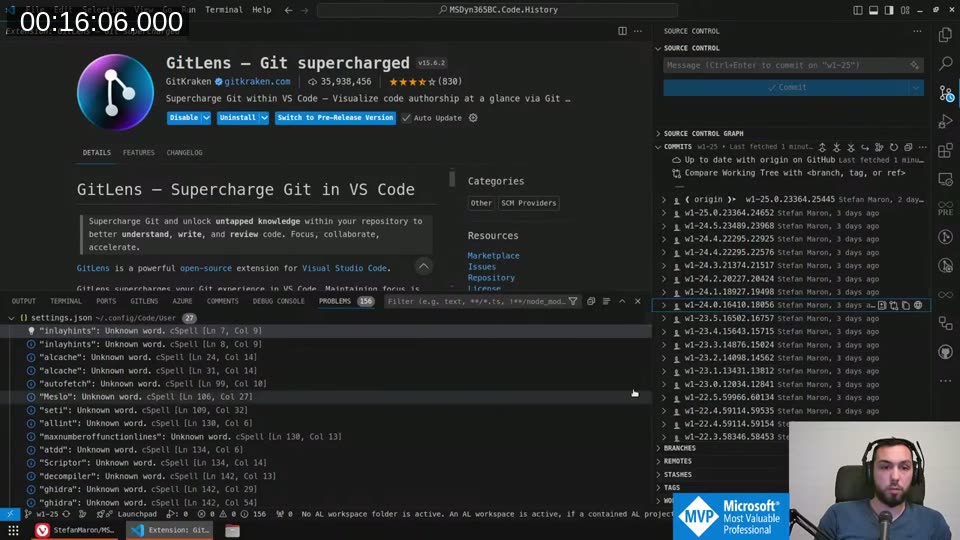
From there you can right-click a commit, Select for Compare, then pick another commit and Compare with Selected. This gives you a full diff between two BC versions across all changed files at once. It’s heavier than looking at one file — comparing v24 to v25 means processing thousands of file changes — so be ready for it to be slow, especially in a VM.
Adding more branches with wildcards
To compare across localizations or add a specific country branch, you don’t need to re-clone. You can add branches individually:
git remote set-branches --add origin de-24
git fetch
Or use wildcards to pull multiple branches at once. The git remote set-branches command only lets you add one at a time, but you can edit .git/config directly:
code .git/config
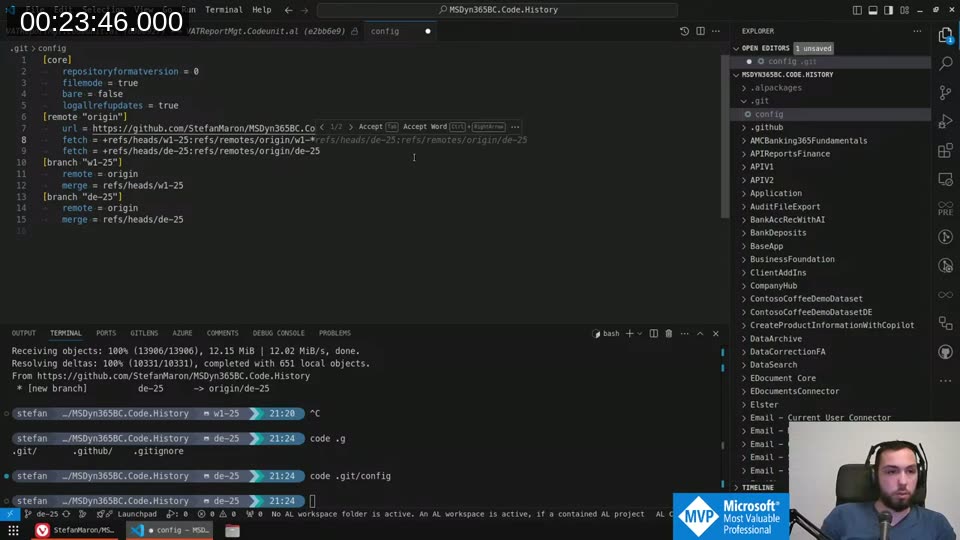
In that file, under [remote "origin"], each fetch line controls which branches get pulled. Change them to wildcards like +refs/heads/w1-*:refs/remotes/origin/w1-* and then git fetch will download all matching branches. To remove branches later, delete the fetch line, delete the local remote reference with git branch -d -r origin/branch-name, and optionally delete the local branch if you had it checked out.
The Sandbox repository and v-next branches
The MsDyn365BC.Sandbox.Code.History
repository works the same way but includes vNext branches — these track the Insider artifacts and update every day via GitHub Actions. So you can see what’s already changed in the upcoming minor release before it ships.
The commit order in vNext branches isn’t always sequential, because Microsoft releases hotfixes for older minors alongside the next version. If you see commits from v24.5 mixed in between v25.x commits, that’s why — the pipeline just picks up whatever was released in the last 24 hours.
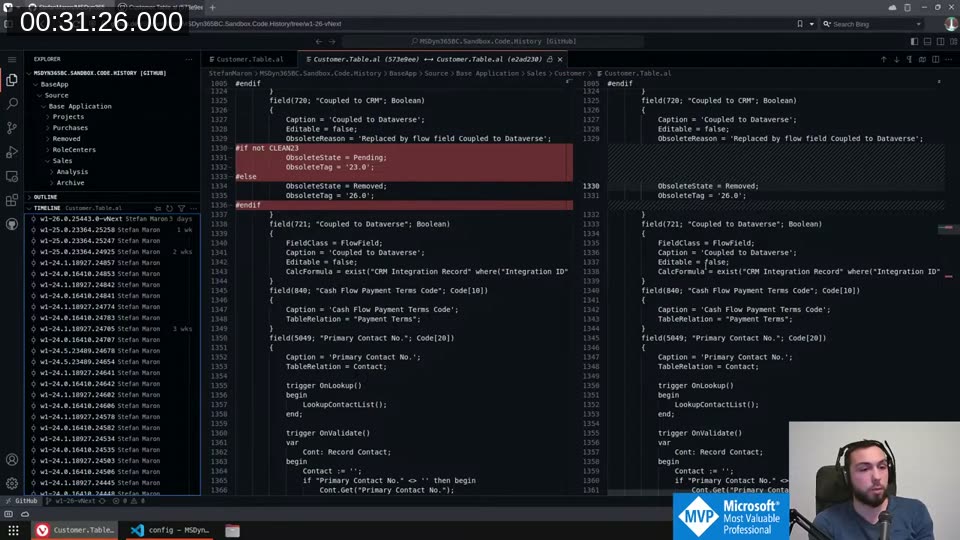
The practical use case: your client is on v24, Microsoft is about to ship v25, and you want to see exactly what changed in a specific table or codeunit. Clone the sandbox repo, fetch the current and next branches, and compare them.
💡 Added context: Both repositories update automatically via scheduled GitHub Actions workflows (BuildNewCommits and BuildNewCommitsNext), so you don’t need to do anything to keep them fresh.
The workspaces Stefan had configured for navigating across branches had also disappeared during a repository restructuring — that’s something to restore if you use the local workflow regularly. The README covers the full setup.
This post was drafted by Claude Code from the stream transcript and video frames. The full stream is on YouTube if you want the unfiltered version. (I did read and check the output before posting, obviously 😄)