Table Keys and SQL Indexes in Business Central
I’ve wanted to dig into this topic properly for a long time. How do AL table keys actually translate to SQL Server indexes? What SQL does Business Central generate from your AL queries? And does adding a key actually help — or can it hurt? This stream was my attempt to answer all of that with real numbers.
The full stream is on YouTube: Table keys and SQL Indexes – The BC Coding Stream
The test setup
I used waldo’s BCPerfTool as the harness. It’s an open-source extension that lets you run and log code units, measuring SQL row reads, statement counts, and duration. I also had Azure Data Studio connected directly to the Docker container’s SQL Server, which meant I could look at the actual query execution plans alongside the AL debugger.
The test table (“Just Some Table WPT”) has around 500,000 rows with fields like Color, Color 2, Country, Quantity, and Message. Simple enough to reason about, large enough that index effects are visible.
What AL keys look like on SQL Server
The first thing I checked: what does Business Central actually create on the SQL Server when you define a key in AL?
A primary key (Clustered = true) becomes a clustered index — that’s the physical sort order of the table. Every other key you define becomes a non-clustered secondary index. The key name in AL maps directly to the index name in SQL, which makes it easy to find in Azure Data Studio.
One important detail: Business Central always appends Entry No. (the primary key field) to every secondary index. That makes every secondary index unique, because the primary key is already unique. It also means BC’s secondary keys are sorted indexes, not grouped ones — which matters for how the query optimizer decides to use them.
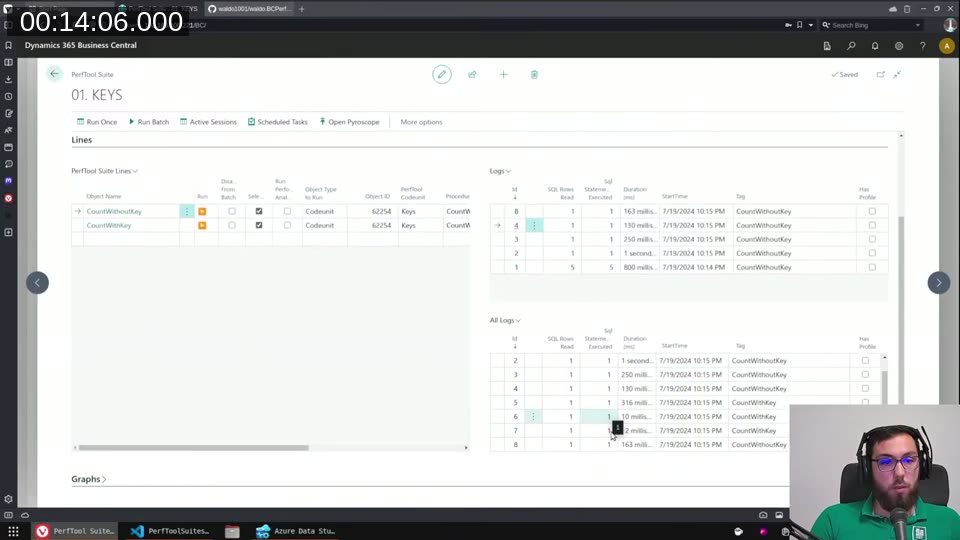
Running the same COUNT(*) query — one filtered on Color (no key) and one on Color 2 (key defined) — you can already see the gap. One takes 1 second on the first run, the other 10 milliseconds. The BCPerfTool logs made it clear something real is happening, but I wanted to see why in the query plan.
Reading the SQL execution plan
Azure Data Studio has an “Estimated Plan” button that shows you exactly how the SQL Server plans to execute a query. The two metrics I kept coming back to were Estimated I/O Cost and Estimated CPU Cost.
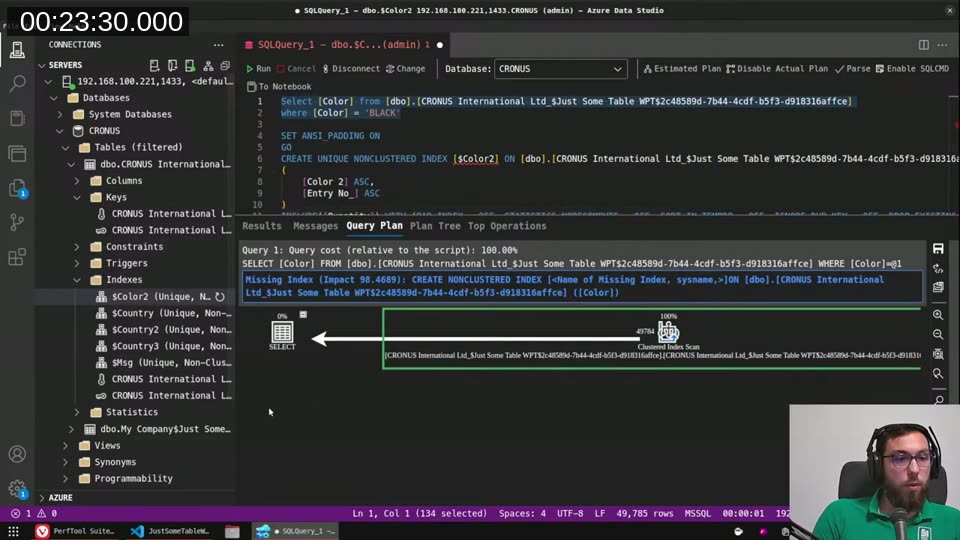
Without a key on Color, querying WHERE [Color] = 'BLACK' produces a Clustered Index Scan — SQL Server walks the whole table and filters as it goes. Estimated I/O cost: 6.8. SQL Server even highlights a “Missing Index” warning with a 90% impact score.
With a key on Color 2, the same query shape produces an Index Seek. SQL Server jumps straight to the first BLACK entry in the sorted index, reads until there are no more, and stops. Estimated I/O cost: 0.05.
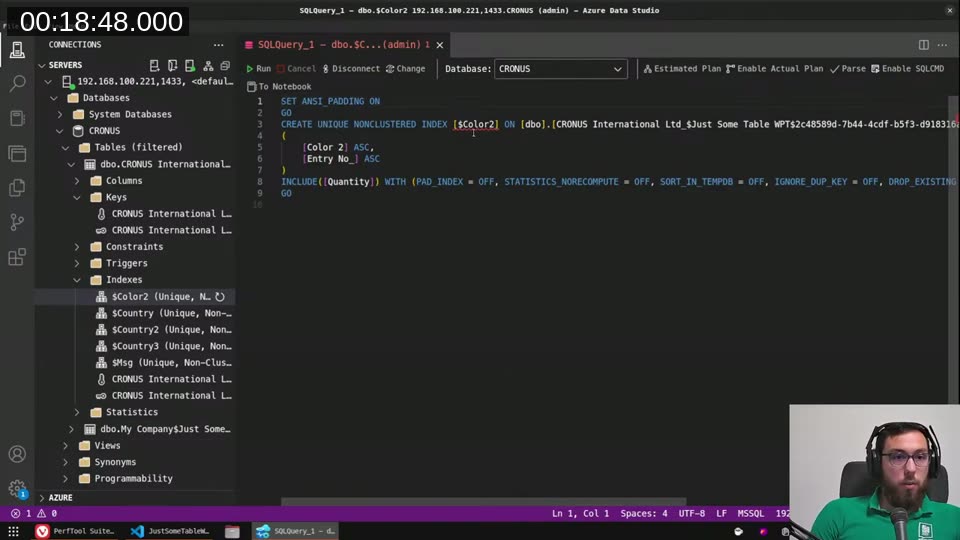
📖 Docs: Table keys in AL covers how AL keys map to SQL indexes, including the difference between clustered and non-clustered keys.
SumIndexFields and the SIFT index view
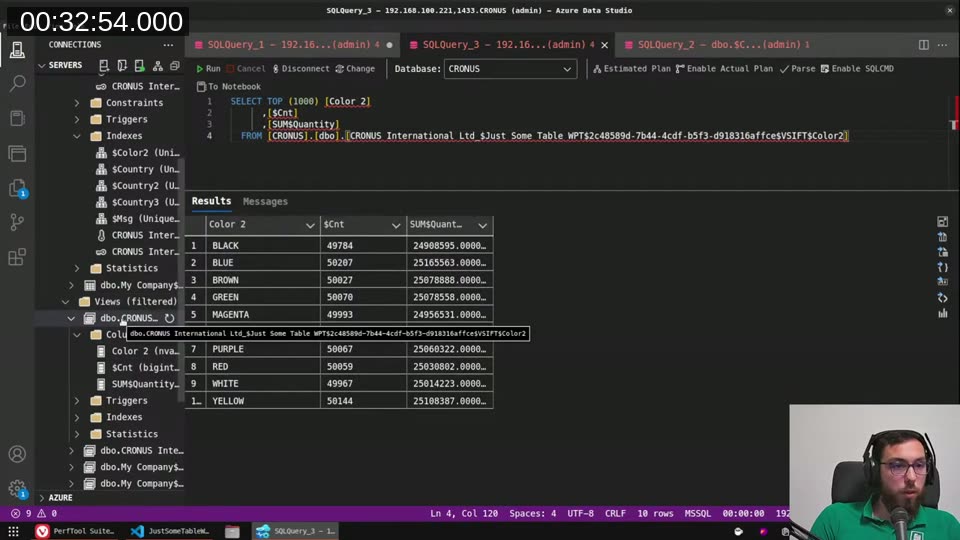
When you add SumIndexFields = Quantity to a key, Business Central doesn’t just create a regular index — it creates a SIFT index view. This is a SQL Server indexed view that pre-aggregates the data: count and sum of Quantity, grouped by the key fields.
I could see this directly in Azure Data Studio under the Views section. The view had a unique clustered index on it. When BC runs a CalcFields or a COUNT with a matching filter, it queries this view instead of the base table.
The cost numbers tell the story: base table clustered scan = 6.8, regular index seek = 0.1, SIFT view seek = 0.003. That’s the difference between reading half a million rows and reading a handful of pre-computed rows.
📖 Docs: SumIndexField Technology (SIFT) explains how BC uses indexed views to make
CalcFieldsandCalcSumsfast.
IncludedFields: covering indexes
The IncludedFields property lets you add extra fields to an index without making them part of the sort key. The idea is that if SQL Server can satisfy the entire query — filters, selected columns — from the index alone, it never needs to touch the base table. That’s called a covering index.
In AL, the definition looks like this:
key(Color2; "Color 2")
{
    IncludedFields = Quantity, SystemId, SystemCreatedAt, SystemModifiedAt, SystemCreatedBy, SystemModifiedBy;
}
With SetLoadFields(Quantity) in the AL code (so BC only selects Quantity), the query plan switches from a Clustered Index Scan to an Index Seek. I/O cost dropped from 6.8 to 0.35.

There’s a hard limit though: you can never create a truly covering index in AL, because BC always selects the timestamp column in its generated SQL, and timestamp is not accessible from AL — so you can’t include it in a key. SQL Server will flag this as a missing column and fall back to a key lookup even when you think you’ve covered everything.
📖 Docs: IncludedFields property — fields here don’t affect
SetCurrentKeymatching but do let the SQL optimizer avoid table lookups.
When SQL Server uses multiple indexes together
Something I didn’t expect: if a query filters on two different columns and each has its own separate key, SQL Server can use both indexes in the same query plan — doing two index seeks and then joining the results with a nested loop or hash match.
I demonstrated this by filtering on both Color 2 and Country (each with their own key). The execution plan showed two Index Seeks feeding into a Nested Loops (Inner Join). Still much faster than a full table scan, even without a composite key covering both columns.
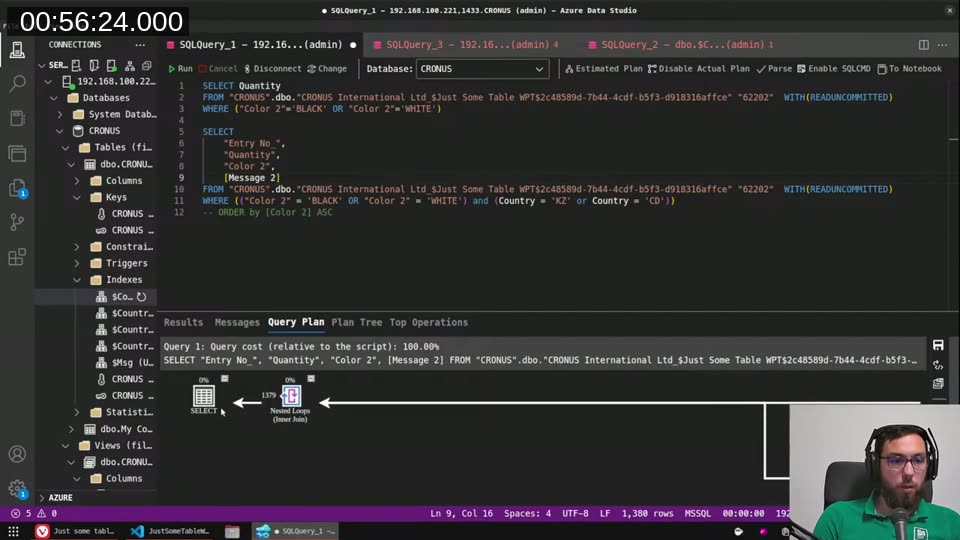
The flip side: even creating a composite key on Color 2, Quantity, Country with Message in IncludedFields didn’t always beat two separate keys, because SQL Server’s optimizer has to weigh the overhead of merging and filtering. It’s not always obvious which approach wins without actually measuring.
Keys slow down writes
This is the part I wanted to make visible with real numbers. An index is a physical copy of (part of) the table data, kept in sync by SQL Server on every insert and update. The more keys you have, the more copies SQL Server has to maintain in every write transaction.
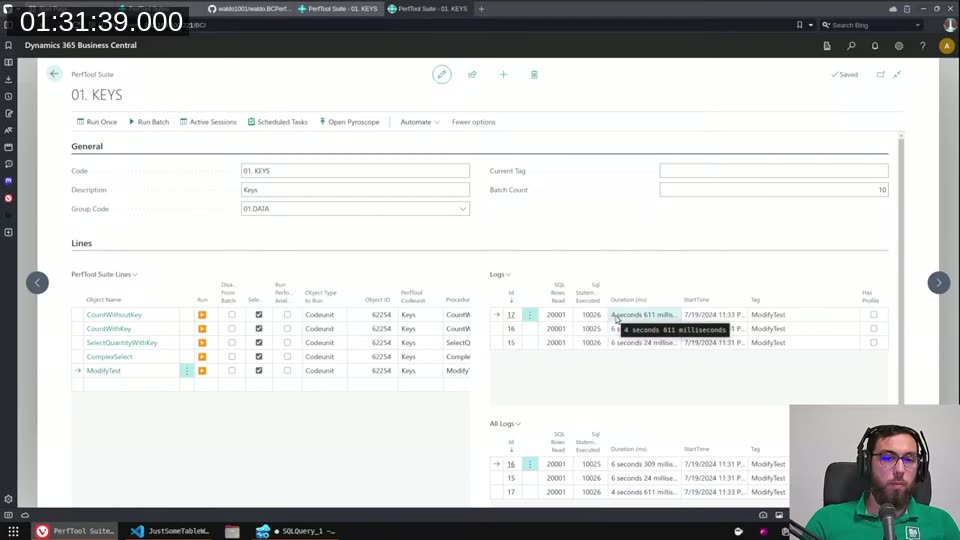
I set up a ModifyTest that loops over 10,000 records and increments Quantity by 1 on each. Baseline timings:
- No keys at all: ~4.5 seconds
- One key on
Quantity: ~5 seconds (half a second slower) - Several keys including
SumIndexFieldsreferencingQuantity: heading toward 6+ seconds
Then I piled on nonsense keys — Color 2, Message, Country 2, Country 3, multiple with SumIndexFields = Quantity — and the modify loop hit 20 seconds for the same 10,000 records. No keys: 4.5 seconds. Same operation, six times slower, just from index overhead.
The disk space impact is just as visible. With a moderate number of keys on the 500K-row table, the index size exceeded the data size — 200 MB of indexes against 109 MB of actual data. That’s database storage you’re billing your customer for.
Database.AlterKey for bulk operations (on-premises only)
There’s an AL method, Database.AlterKey(KeyRef, Enable), that temporarily disables a key for the duration of the current transaction. The idea is: disable the expensive indexes, do your bulk update, re-enable them.
RecRef.Open(Database::"Just Some Table WPT");
Database.AlterKey(RecRef.KeyIndex(2), false);

JustSomeTableWPT.SetRange("Entry No.", 0, 10000);
if JustSomeTableWPT.FindSet() then
    repeat
        JustSomeTableWPT.Quantity += 1;
        JustSomeTableWPT.Modify();
    until JustSomeTableWPT.Next() = 0;

Database.AlterKey(RecRef.KeyIndex(2), true);
Important caveat: this only works on-premises. It’s not available in SaaS. I spent a while trying to get it to compile and run correctly — there are some constraints around which keys can be disabled (not clustered, not unique) and the key scope has to be right.

📖 Docs: Database.AlterKey method — note the on-premises only restriction and the transaction scoping.
Rules of thumb
After a few hours of poking at query plans and timing results, here’s where I landed:
Don’t add keys defensively. Every key has a write cost. The SQL Server optimizer is quite good at choosing whether to use an index, but it can’t undo index maintenance overhead on writes.
Add a key when you can measure the benefit. Use BCPerfTool, the AL profiler, or look for “Missing Index” warnings in execution plans. If the optimizer isn’t complaining and your code isn’t slow, you probably don’t need the key.
SumIndexFieldsis worth it for frequently-calculated FlowFields on append-heavy tables (G/L Entries, Ledger Entries). Much less worth it on tables that get modified frequently, like Sales Lines.IncludedFieldscan help when you useSetLoadFieldsand the query is genuinely performance-critical. Don’t bother without measuring.You cannot create a true covering index in AL because of the
timestampcolumn. BC’s generated SQL will always need at least a key lookup for timestamp, so there’s a ceiling on how far included fields can take you.Two separate keys can be better than one composite key — the optimizer may use both. A composite key helps most when the filter pattern is predictable and consistent.
This post was drafted by Claude Code from the stream transcript and video frames. The full stream is on YouTube if you want the unfiltered version. (I did read and check the output before posting, obviously 😄)